
Quick answer: open Settings → Security & privacy → Device unlock → Theft protection and turn on (1) Theft Detection Lock, (2) Offline Device Lock, (3) Failed Authentication Lock and (4) Remote Lock. Then (5) add a short message on your lock screen so an honest finder can reach you. You need a screen lock (PIN, pattern or password) first. It takes about a minute, and it’s free.
Phone thieves usually grab the phone and run, switch off the internet so you can’t track it, then try to guess their way in. Google added a setting for each of those moves. We recorded every step on Android 16 (the Pixel version of Android); on Samsung, Xiaomi and other phones with Android 10 or newer the same protection comes with Google Play services, and we show where to find it in each step. Watch the one-minute video first, then follow the screenshots.
Before you start: set a screen lock
All of these protections lock your screen, so they only help if the screen has a lock. A swipe is not a lock.
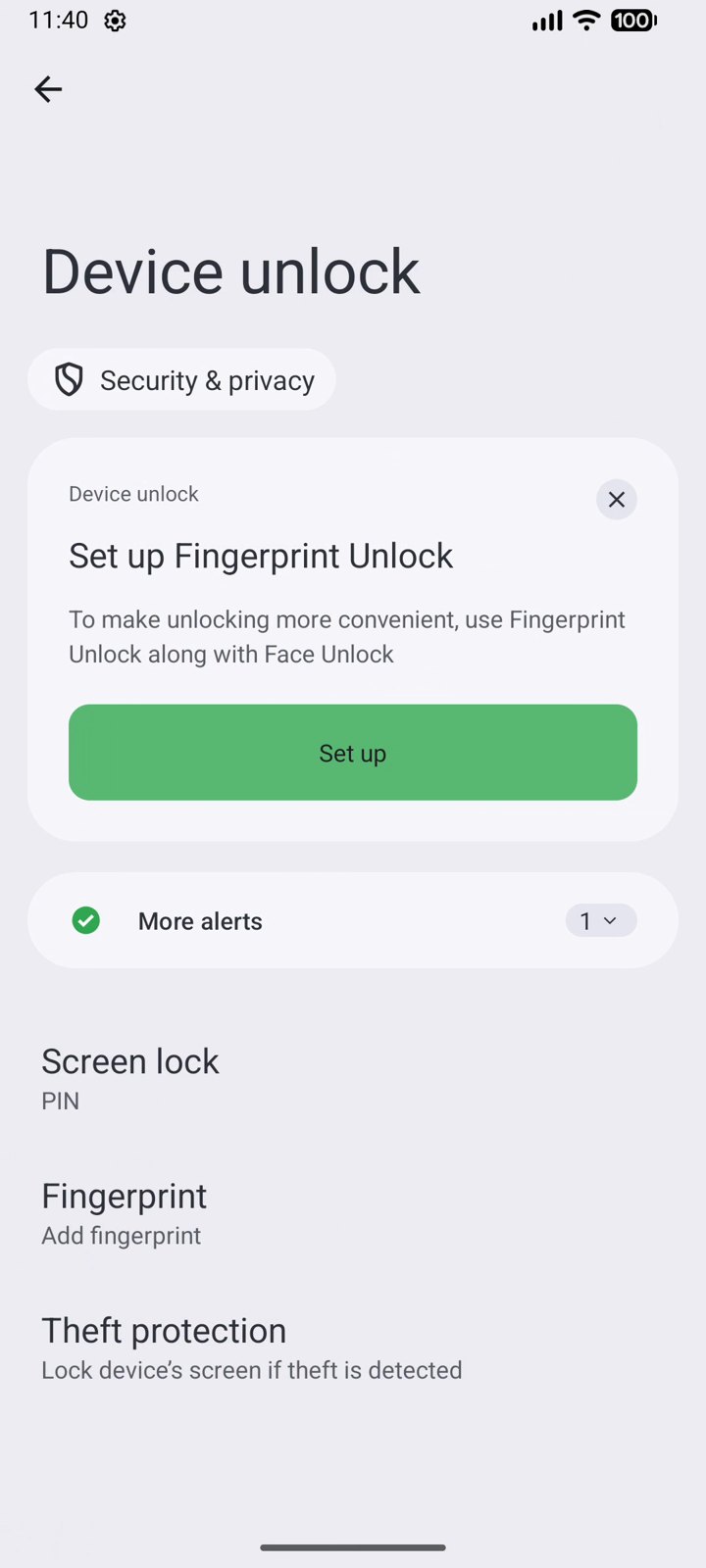
Settings → Security & privacy → Device unlock → Screen lock and choose a PIN, pattern or password (Samsung: Settings → Lock screen and AOD → Screen lock type. Xiaomi: Settings → Fingerprints, face data and screen lock).
1. Turn on Theft Detection Lock
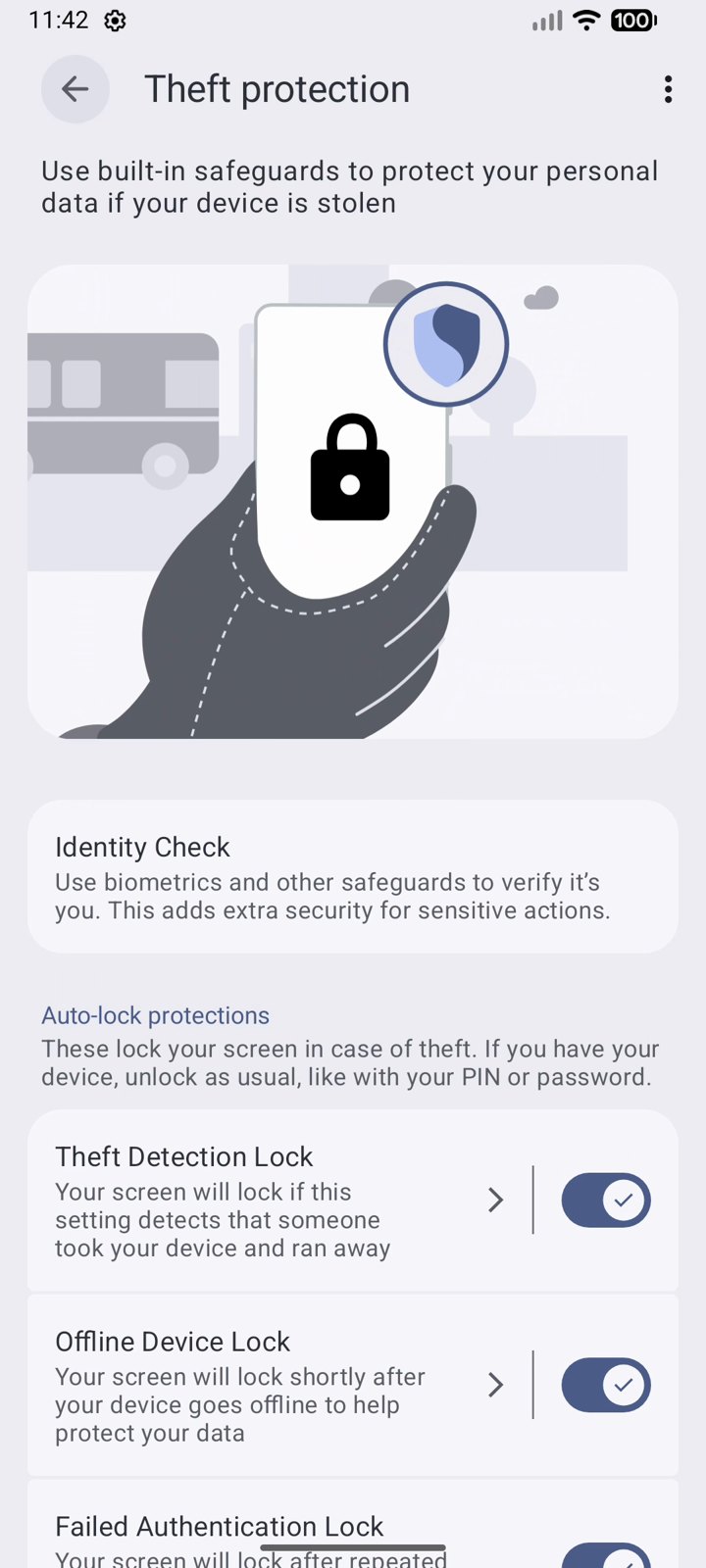
Theft Detection Lock uses the phone’s motion sensors and AI to recognise the typical snatch: someone pulls the phone out of your hand and runs, cycles or drives away. The moment that happens, the screen locks, so the thief can’t open your apps, photos or bank.
- Open Settings → Security & privacy → Device unlock → Theft protection.
- Turn on Theft Detection Lock and tap OK.
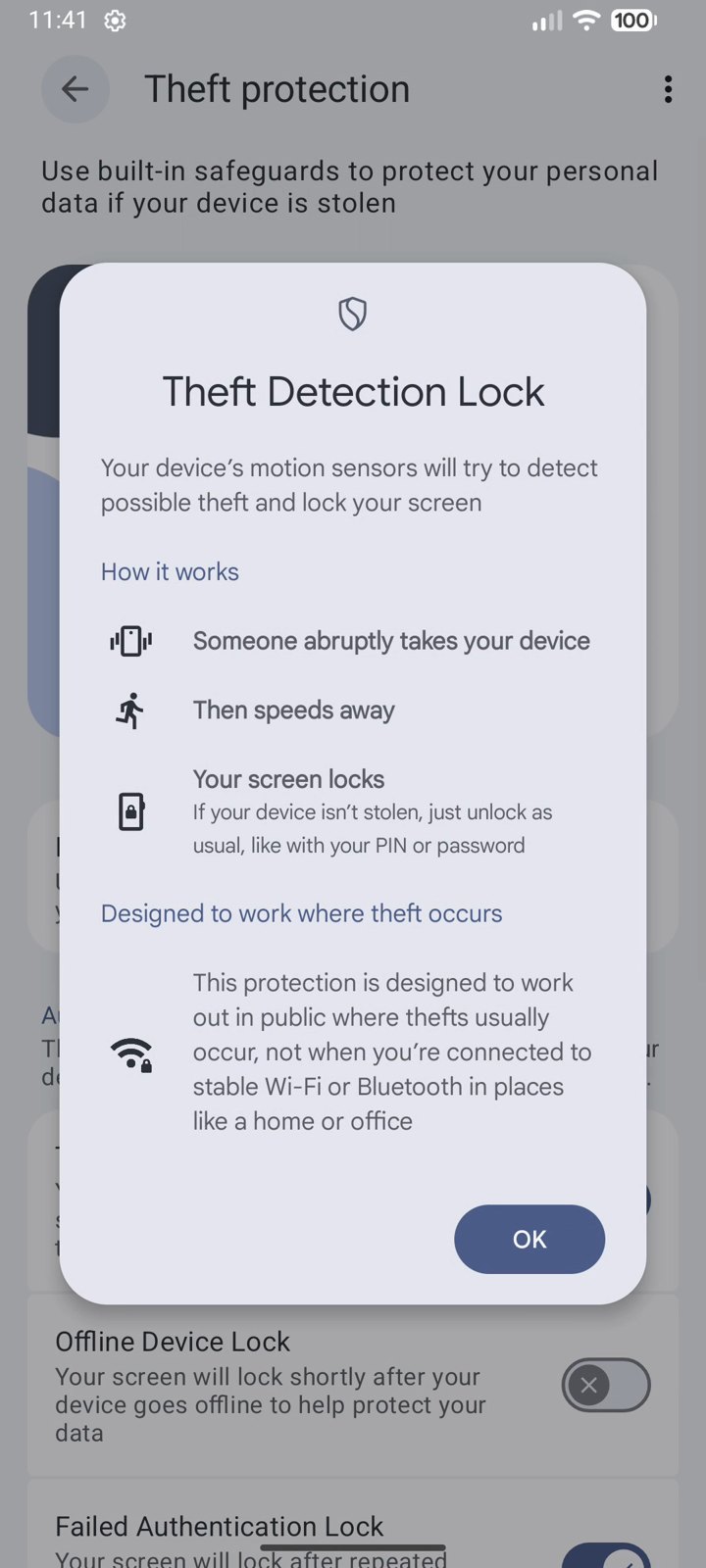
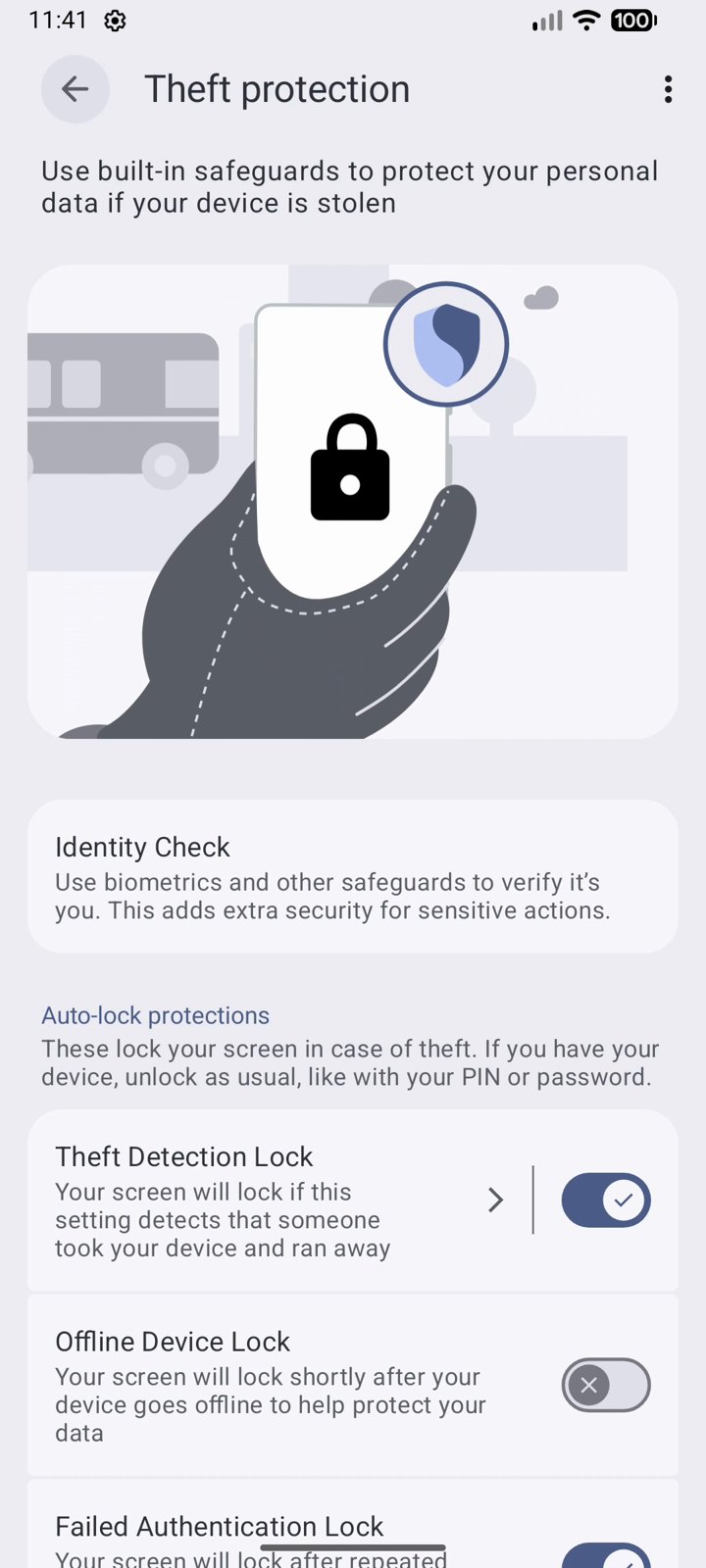
Samsung: Settings → Security and privacy → Lost device protection → Theft protection. Xiaomi and other phones: Settings → Google → All services → Theft protection. If your phone just locks by accident, unlock it as usual.
2. Turn on Offline Device Lock
The first thing many thieves do is switch on airplane mode or pull the SIM, so the owner can’t locate or lock the phone. With Offline Device Lock, the screen locks shortly after the phone goes offline.
- On the same Theft protection page, turn on Offline Device Lock.
- Tap OK.
3. Keep Failed Authentication Lock on
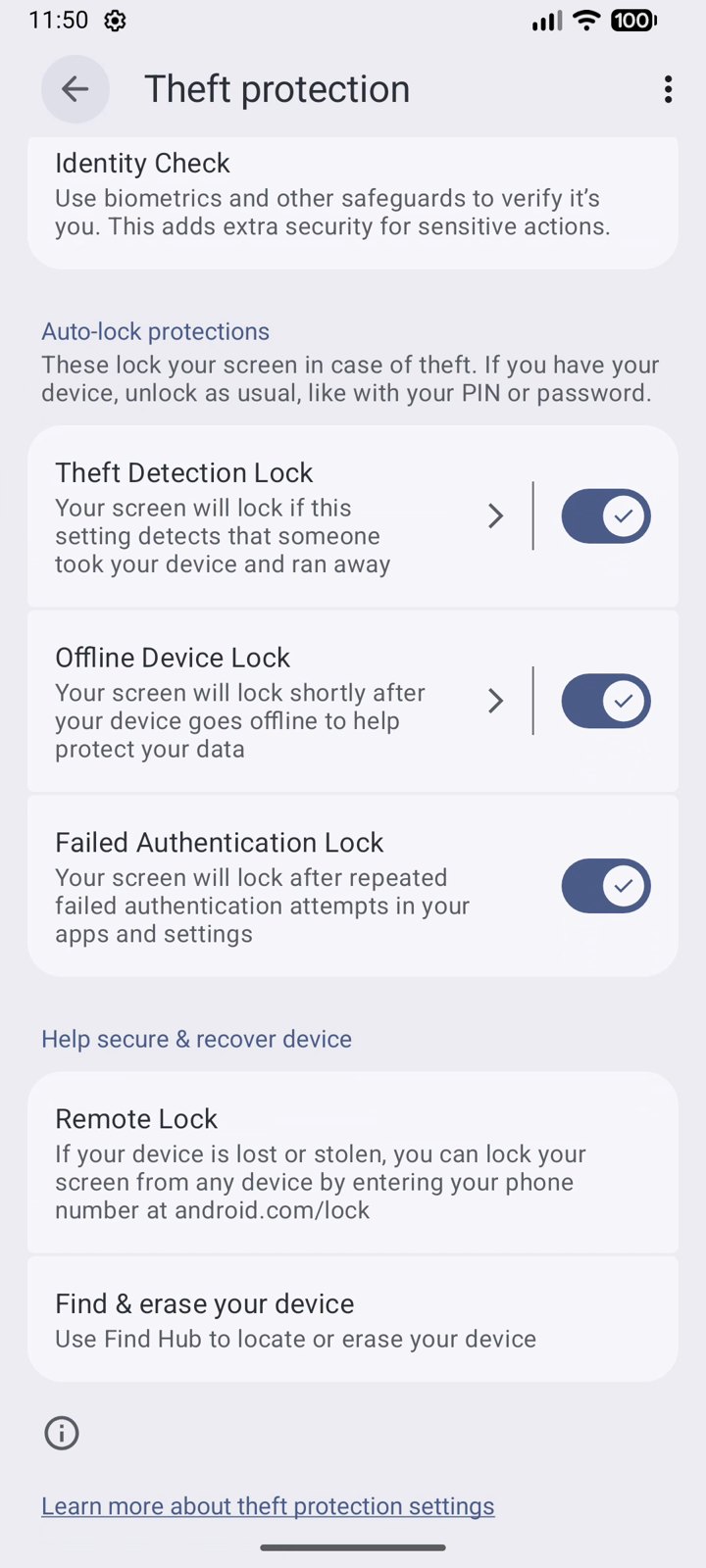
Failed Authentication Lock locks the screen after several wrong attempts to unlock apps or settings, which stops someone from guessing their way in. It is usually on by default; just check it is.
- On the Theft protection page, scroll a little.
- Make sure Failed Authentication Lock is on.
4. Turn on Remote Lock
Remote Lock lets you lock your phone from any browser, even a friend’s, with only your phone number: no password needed, which is exactly what you don’t have when your phone is gone.
- On the Theft protection page, tap Remote Lock.
- Turn on Use Remote Lock.
- If your phone is stolen, go to android.com/lock on any device and enter your number.
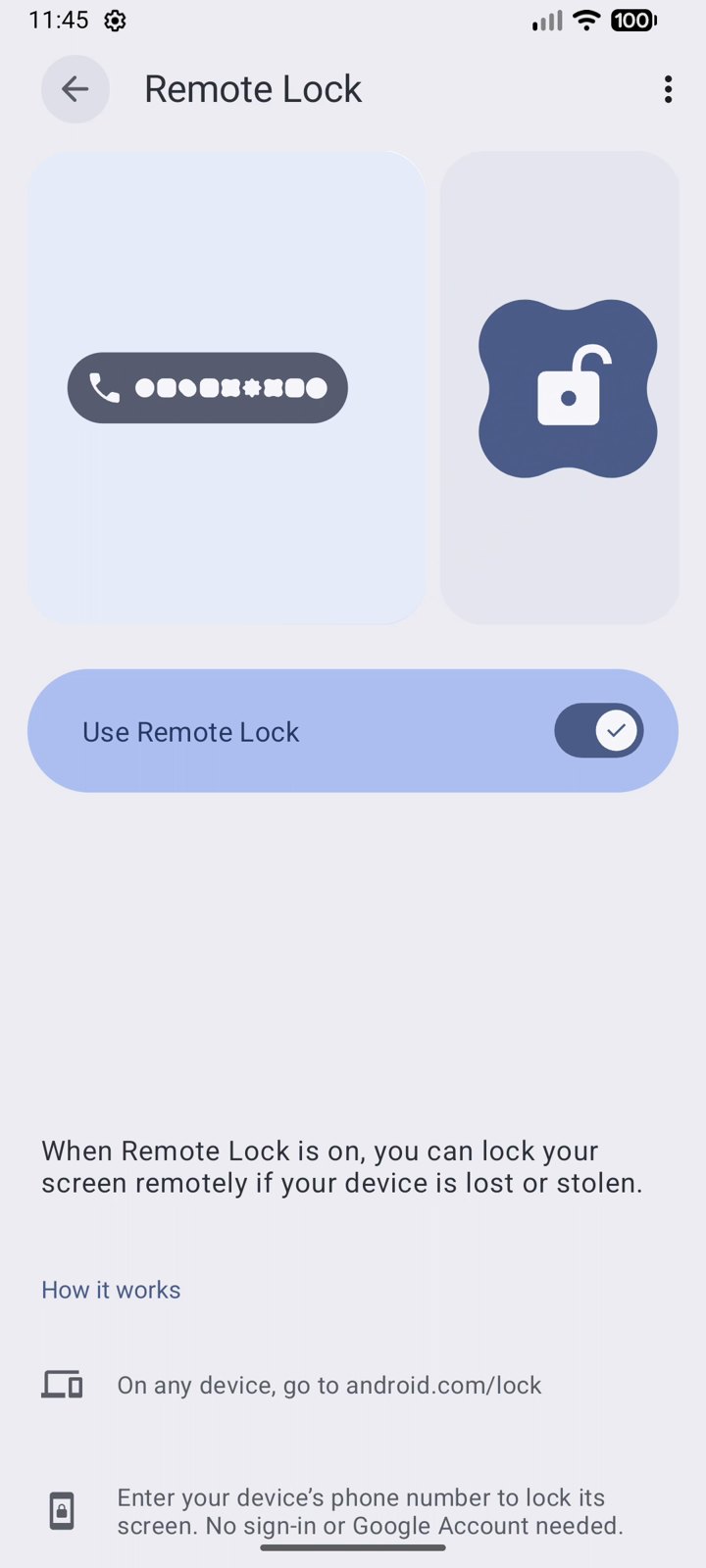
Remote Lock needs the phone to be signed in to a Google Account and online. To locate, ring or erase the phone, use Find Hub (see below).
5. Add a message on your lock screen
Not everyone who finds a phone is a thief. A short line on the lock screen (“If found, please call …” with a family member’s number) gives an honest finder a way to return it without unlocking it.
- Open Settings → Display & touch → Lock screen.
- Tap Add text on lock screen, type your message and tap Save.
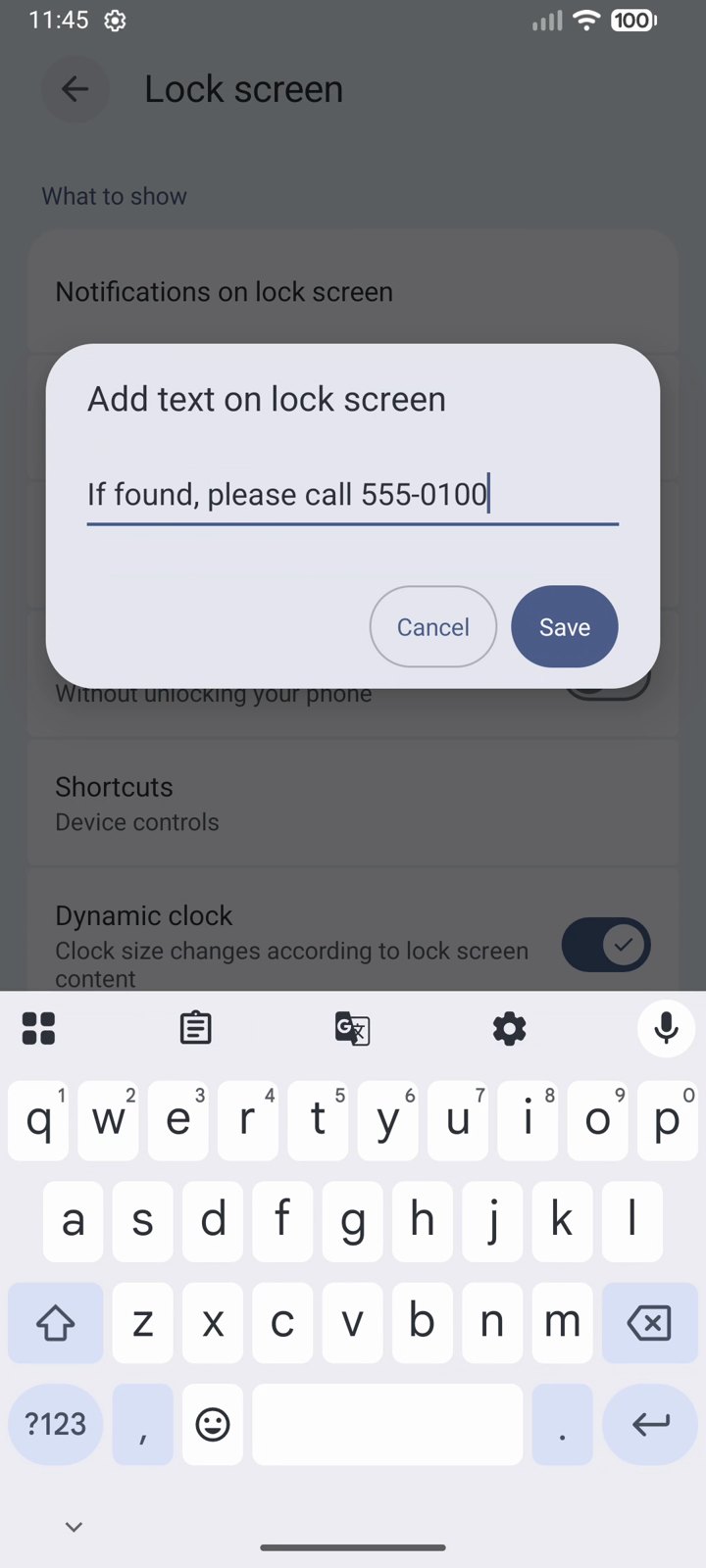
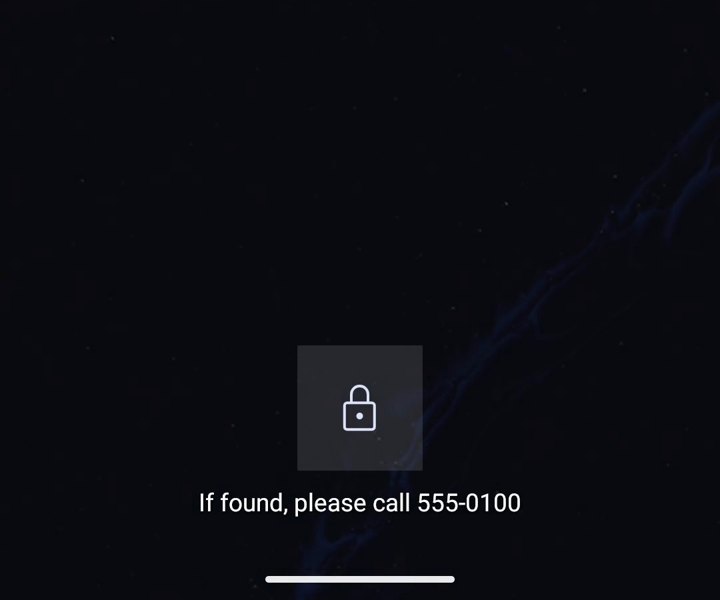
Use a second number (a partner, parent or work line), not the number of the phone itself. Samsung: Settings → Lock screen and AOD → Contact information. Xiaomi: search Settings for “lock screen text” or “owner info”.
What else should I do: Find Hub
Find Hub (the new name of Find My Device) shows your phone on a map, rings it and can erase it from a distance. Check it is on in Settings → Google → All services → Find Hub, and if the phone is gone, open google.com/android/find. Our step-by-step guide on how to find a lost Android phone explains every option.
While you’re in Settings, check these 5 Android privacy settings too, and keep your phone clean with one of the best antivirus apps for Android.
Want more quick Android tricks? Follow AppsApk on Instagram and get daily app picks on our Telegram channel.


















Leave a Comment