
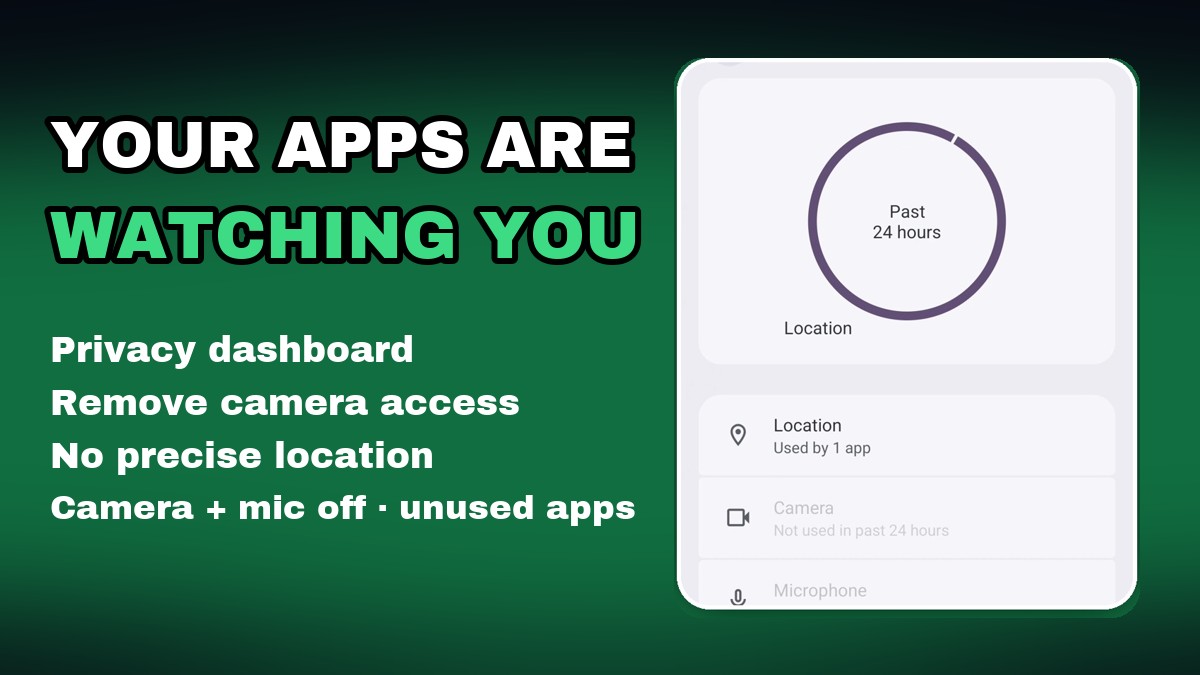
Quick answer: open Settings → Security & privacy → Privacy and (1) check the Privacy dashboard, (2) remove camera, mic and location access from apps that don’t need it in Permission manager, (3) turn off precise location, (4) switch off camera and microphone access for all apps when you want full privacy, and (5) let Android remove permissions from apps you stop using. It takes about a minute and works on Android 12 and newer.
We recorded every step on Android 16 (the Google Pixel version of Android). The menu names below are Google’s; on Samsung and Xiaomi phones the same settings exist under slightly different names, which we list in each step. Watch the one-minute video first, then follow the screenshots.
Before you start: update your phone
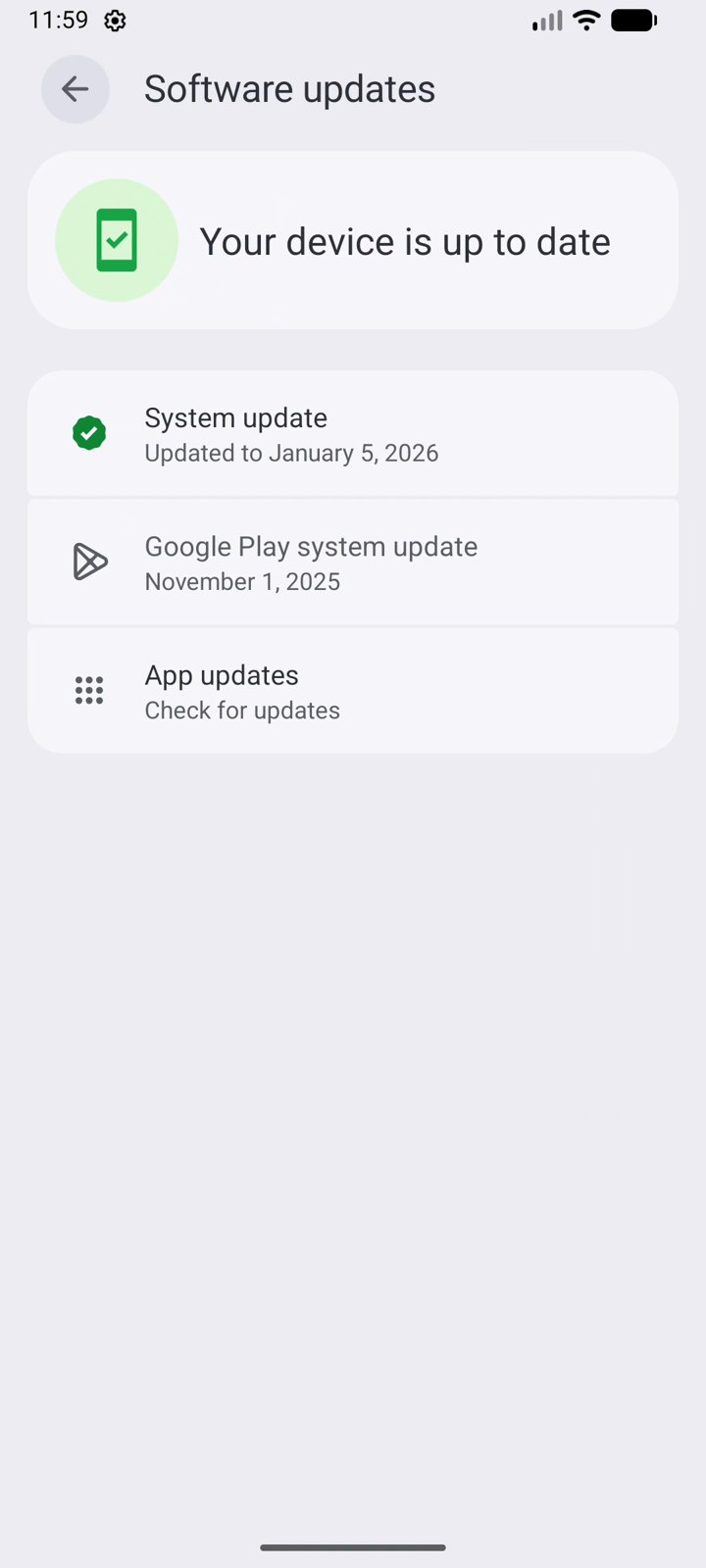
The privacy tools below arrived with Android 12 and got better with every update, so start by installing the latest update:
Settings → System → Software updates (Samsung: Settings → Software update. Xiaomi: Settings → About phone → OS version / HyperOS update).
1. Check the Privacy dashboard
The Privacy dashboard shows which apps used your location, camera and microphone in the last 24 hours, and exactly when. If an app you didn’t open used your mic, that’s your first suspect.
- Open Settings → Security & privacy.
- Tap Privacy dashboard.
- Tap Location, Camera or Microphone to see the apps and times.
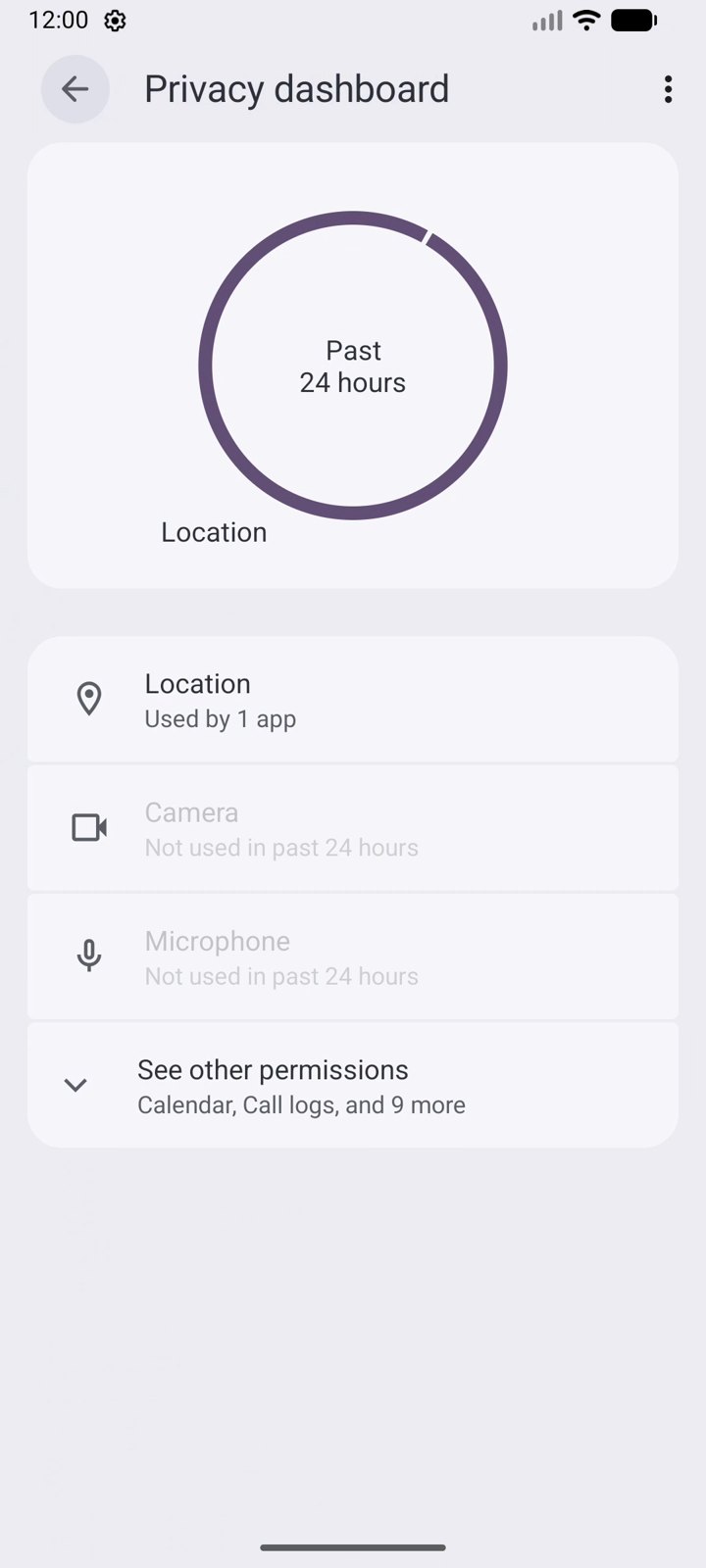
Samsung: Settings → Security and privacy → Privacy → Permissions used in last 24 hours. Xiaomi: Settings → Privacy protection.
2. Remove camera access in Permission manager
Permission manager lists every permission and the apps that have it. A browser, a game or a flashlight app rarely needs your camera.
- Go to Settings → Security & privacy → Privacy controls → Permission manager.
- Tap Camera.
- Tap an app that doesn’t need it (we used Chrome) and choose Don’t allow.
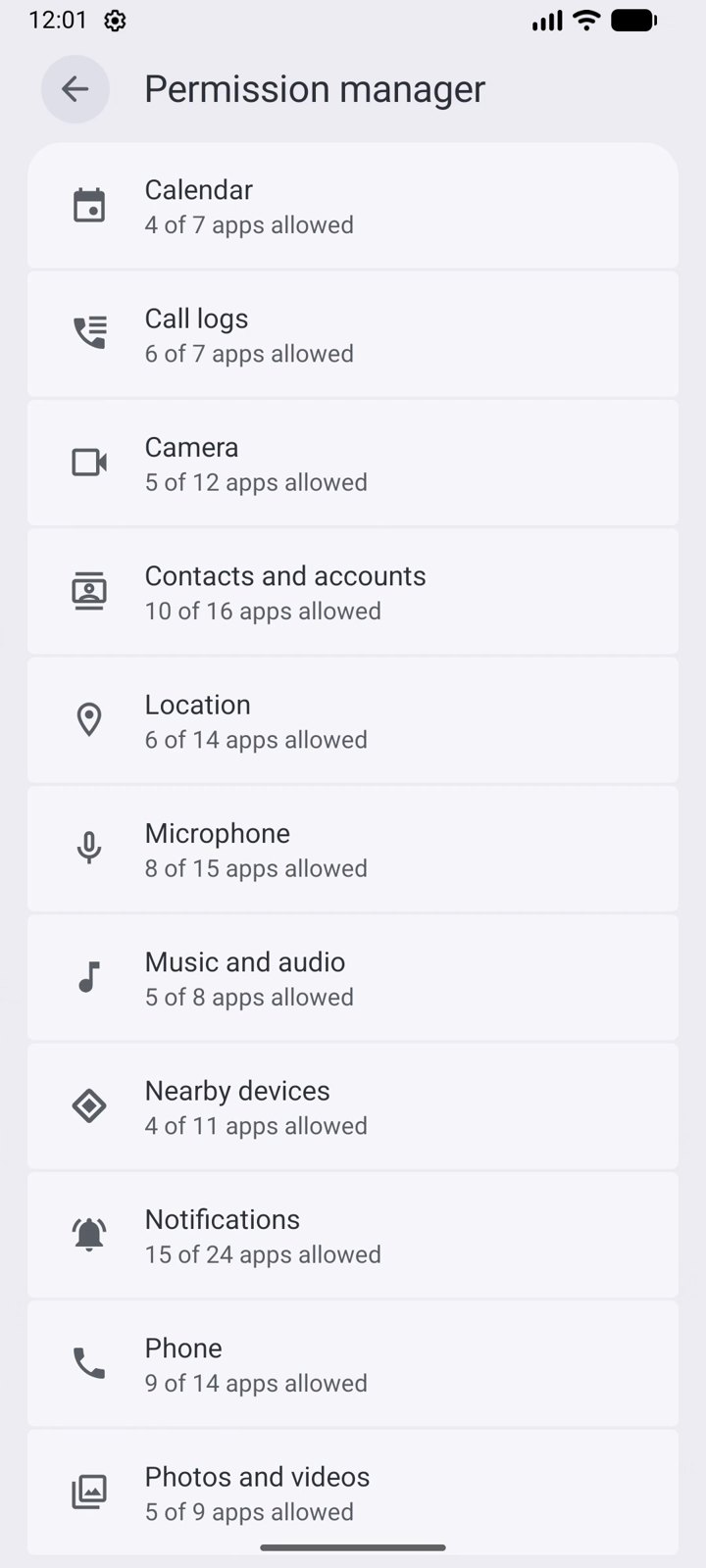
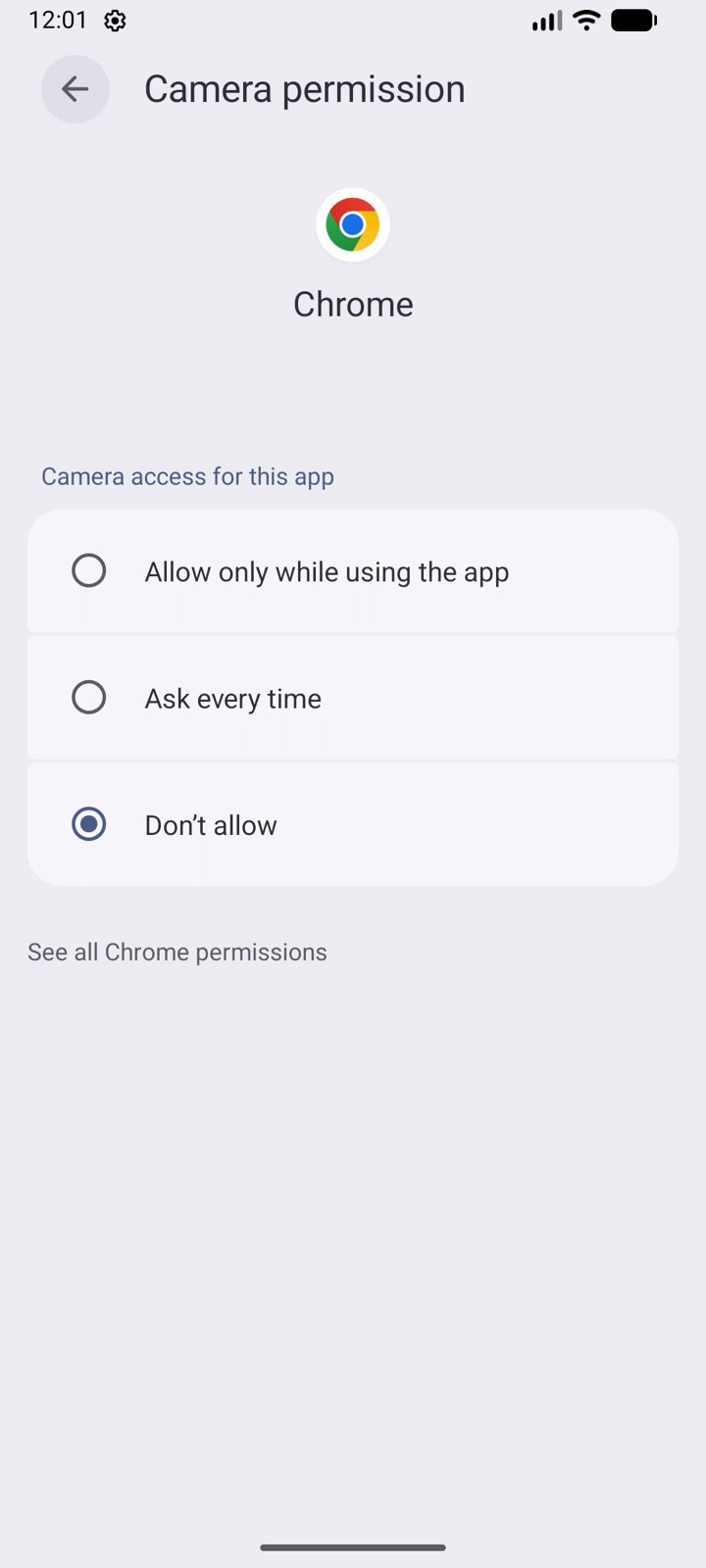
Do the same for Microphone, Contacts and Photos. If an app really needs a permission later, it will simply ask you again.
3. Turn off precise location
Most apps (weather, shopping, news) only need to know your city, not your exact street. Turning off precise location gives them your approximate area instead.
- In Permission manager, tap Location.
- Tap the app (we used Maps).
- Turn off Use precise location.
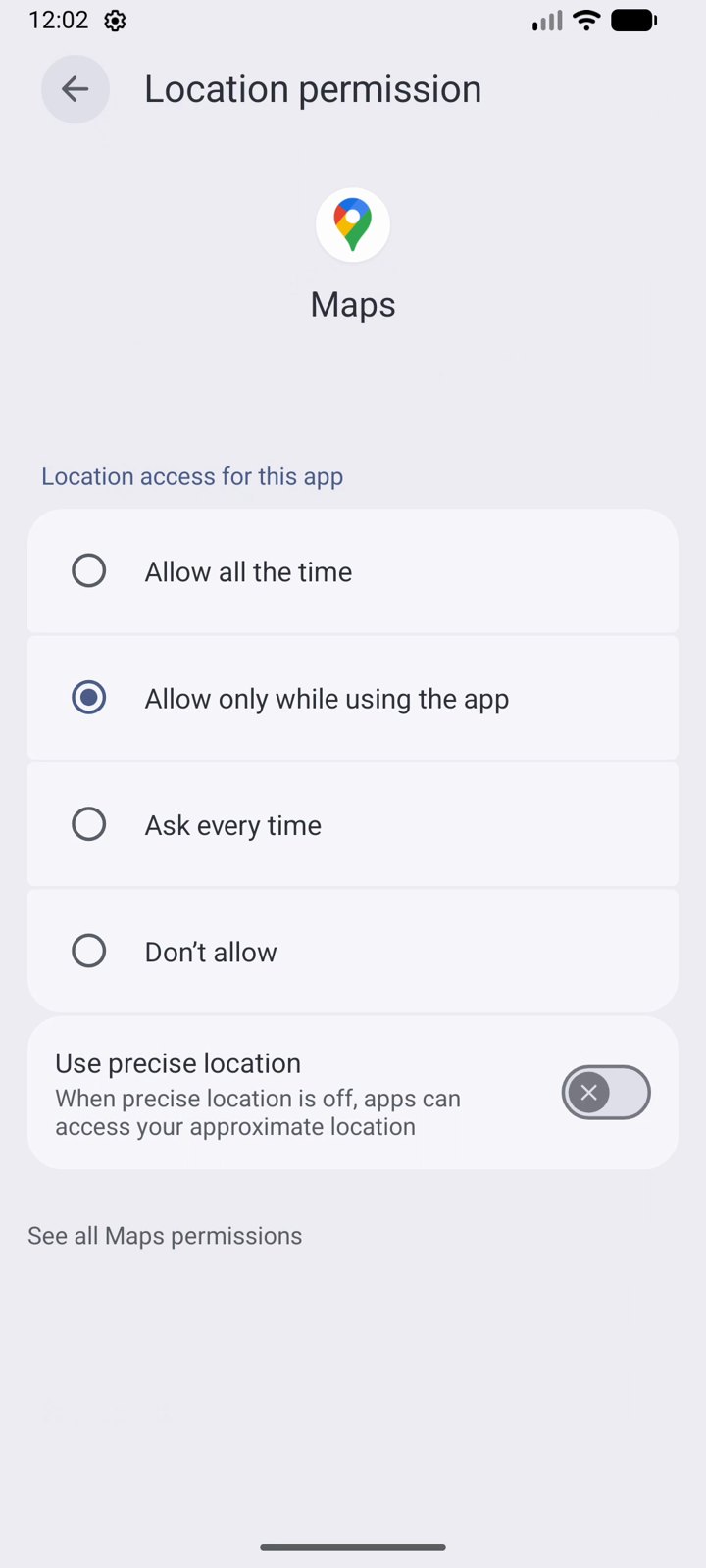
Keep precise location on only for navigation and delivery apps that really need it.
4. Switch off camera and microphone for every app
Android has two master switches that block the camera and microphone for all apps at once. Use them before a private meeting or at night.
- Go to Settings → Security & privacy → Privacy controls.
- Turn off Camera access and Microphone access.
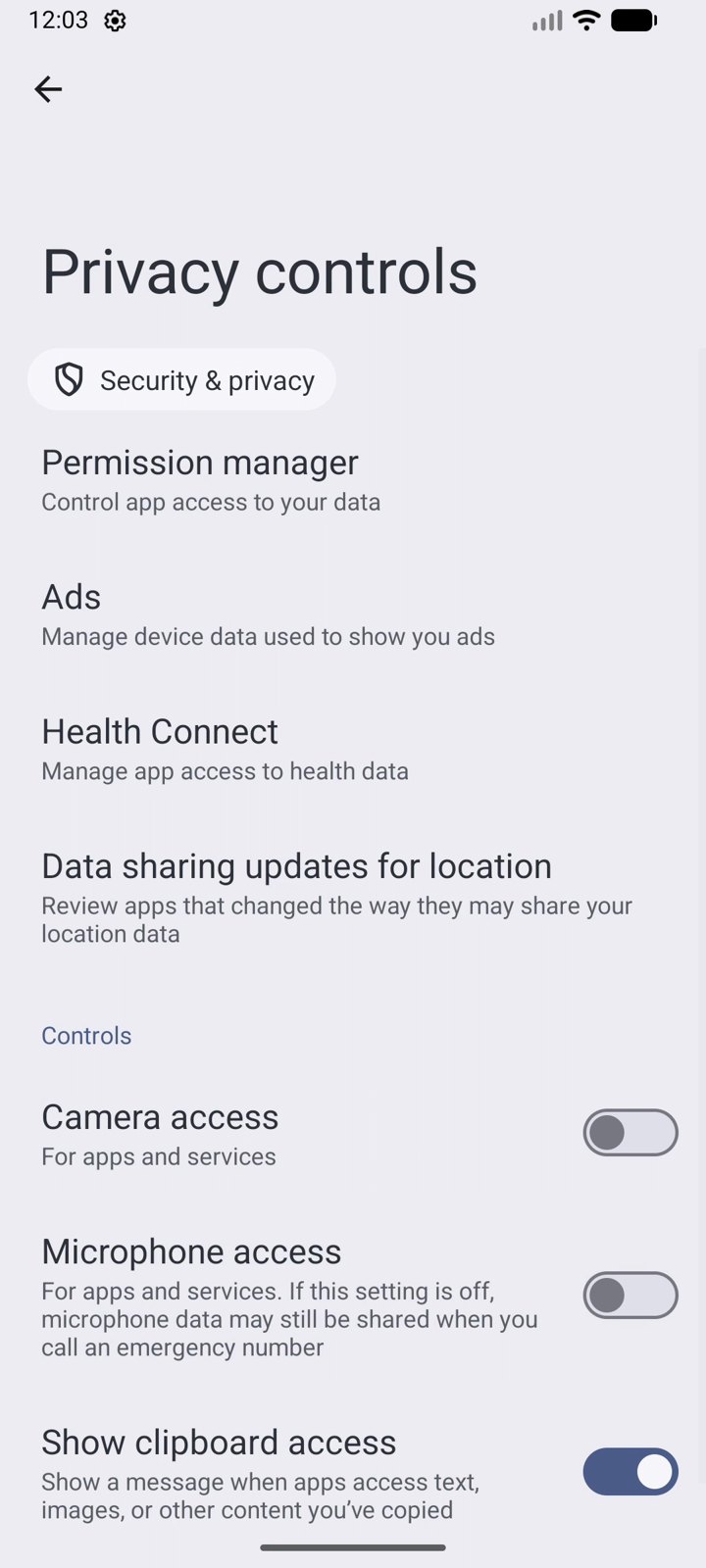
Tip: the same two switches are available as Quick Settings tiles (swipe down twice, tap the pencil and add them). Emergency calls still work with the microphone switch off.
5. Let Android clean up apps you stop using
Apps you installed once and forgot can keep their permissions forever. Android can remove them automatically after a few months of not using the app.
- Open Settings → Apps and tap an app (we used YouTube).
- Scroll down to Manage app if unused and make sure it’s on.
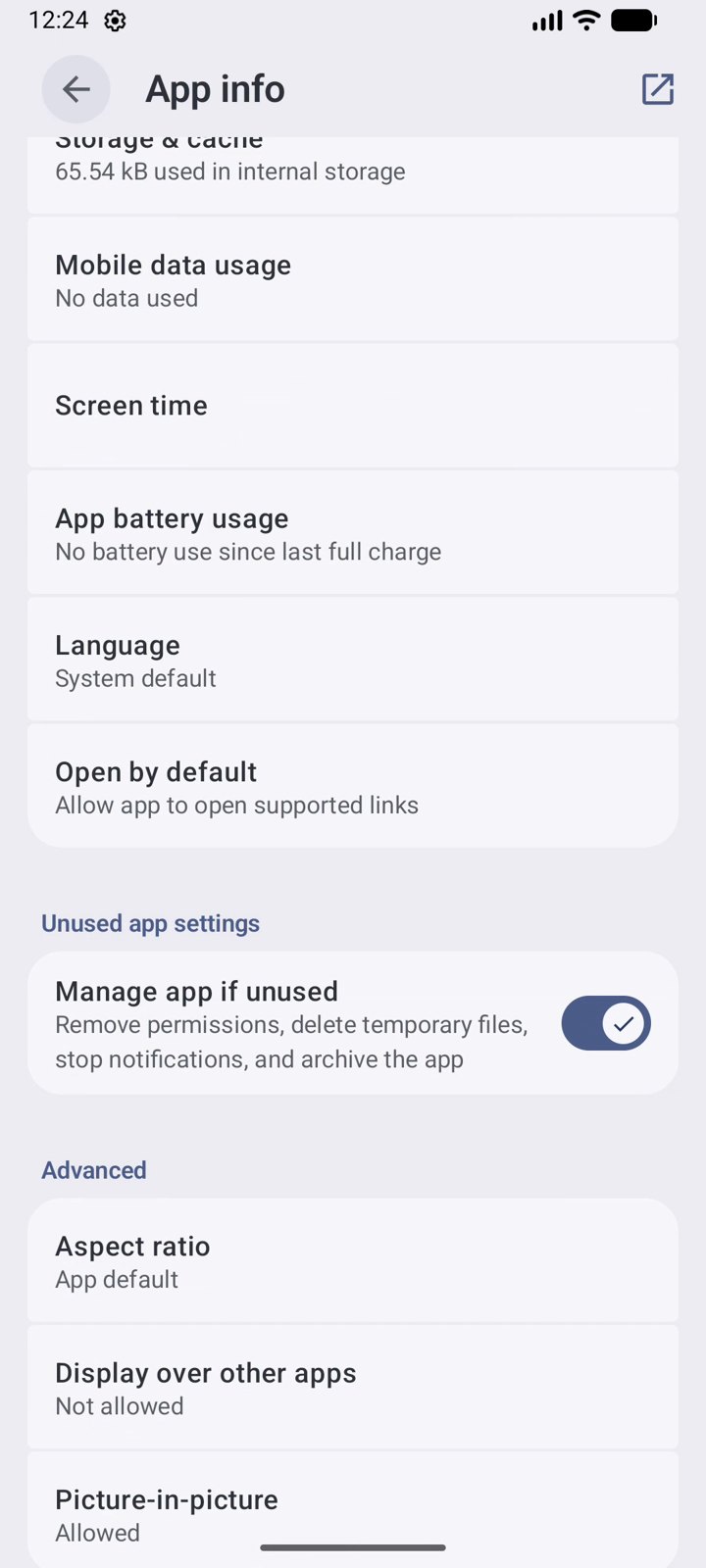
It’s on by default for most apps, but some phones switch it off; checking takes five seconds.
How often should I check my privacy settings?
A quick look at the Privacy dashboard once a week is enough, plus a check of Permission manager whenever you install a new app. For extra protection against malicious apps, see our list of the best antivirus apps for Android.
Want more quick Android tricks? Follow AppsApk on Instagram and get daily app picks on our Telegram channel.


















Leave a Comment