
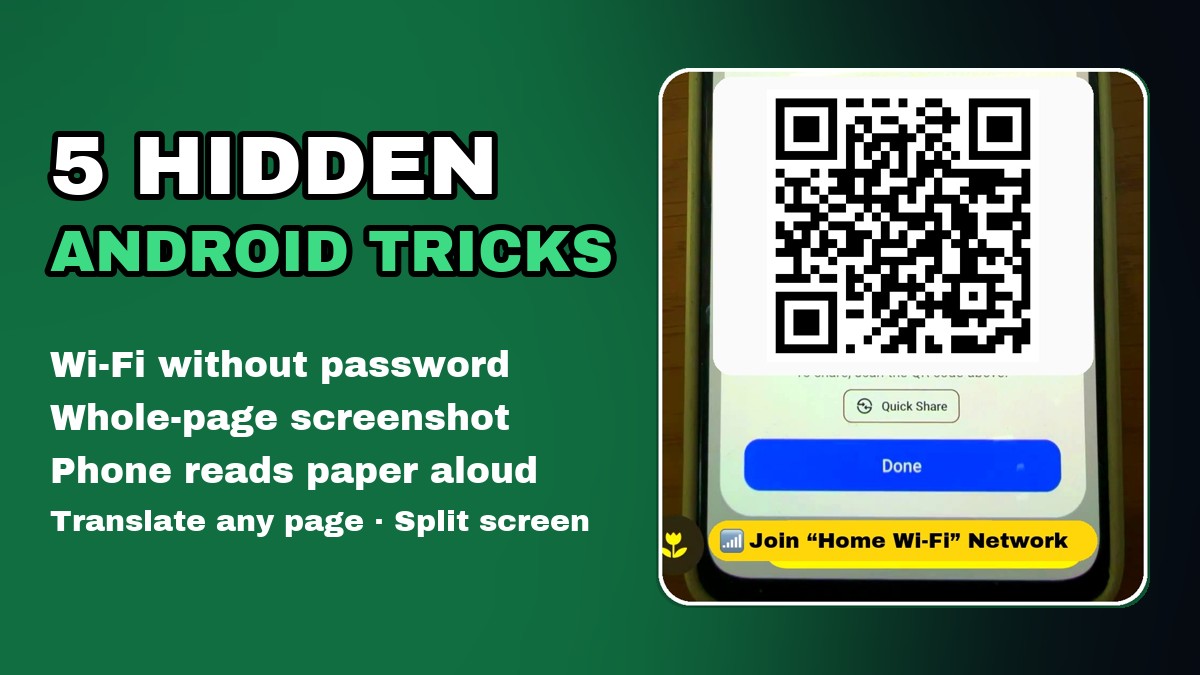
Quick answer: your Android phone can (1) share your Wi-Fi with a QR code so nobody needs the password, (2) take a screenshot of a whole web page in Google Chrome, (3) read printed text out loud with Google Lens, (4) translate any page into your own language and (5) show two apps on the screen at the same time. All five are built in or free, and each takes under a minute.
We tested every trick on a Xiaomi Redmi Note 11 Pro 5G (sold as the POCO X4 Pro 5G). The menu names below are the Xiaomi / Redmi / POCO ones; where Samsung or Google Pixel phones differ, we say how. Watch the video first, then follow the screenshots step by step.
Before you start: install Google Lens (and update Chrome)
Tricks 3 and 4 use Google Lens, a free app from Google. Trick 2 uses Google Chrome, which is already on almost every Android phone. Make sure both are installed and up to date:
Play Store → search “Google Lens” → Install. Then Play Store → search “Chrome” → Update (if you see the button).
You can also download them here: Google Lens and Google Chrome.
1. Share your Wi-Fi without the password (QR code)
A guest asks for your Wi-Fi password and you can’t remember it? You don’t need it. Your phone can show the network as a QR code, and the other phone joins with one tap.
- Open Settings and tap Wi-Fi.
- Tap the network you’re connected to (on Xiaomi it says “Tap to share password”).
- A QR code appears.
- On the other phone, open the camera and point it at the code. Tap Join network. Done.
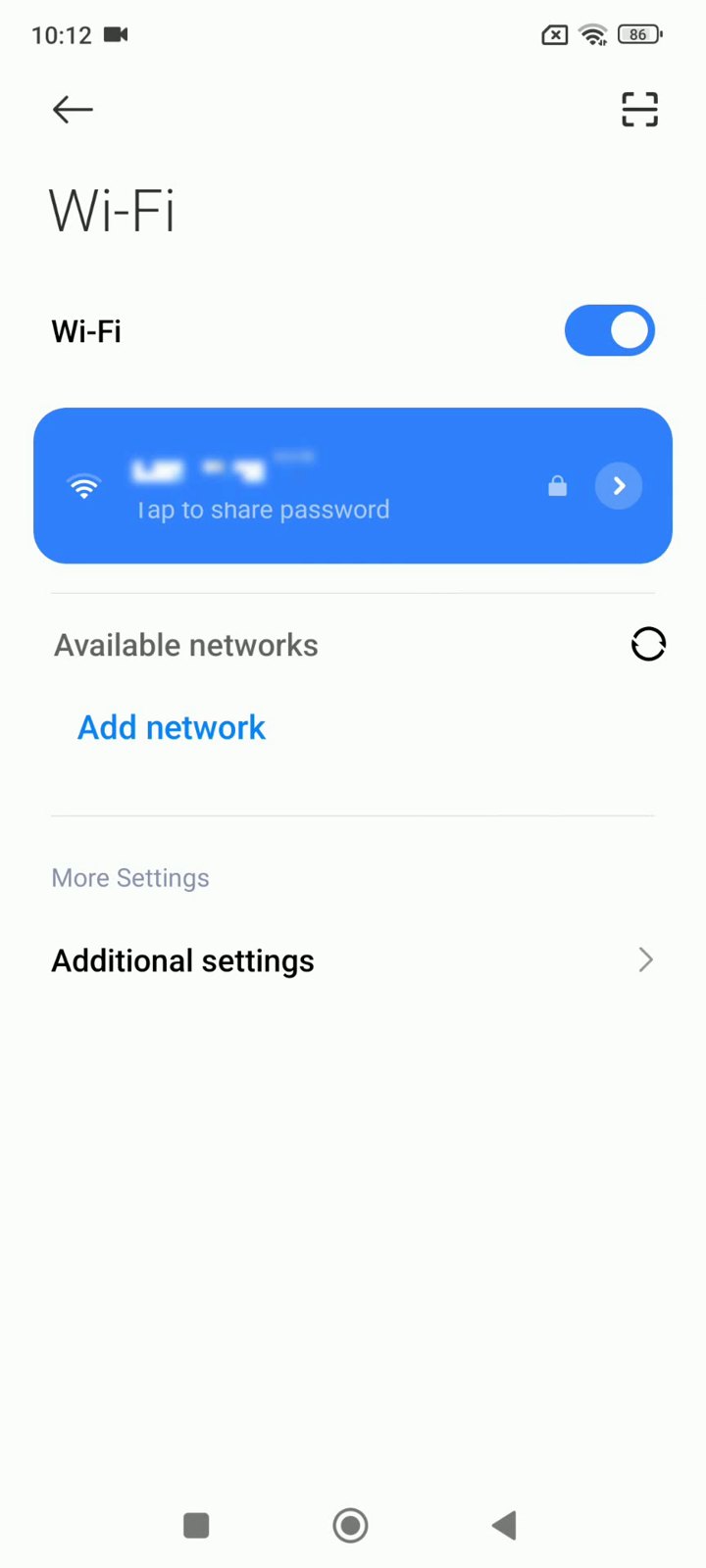
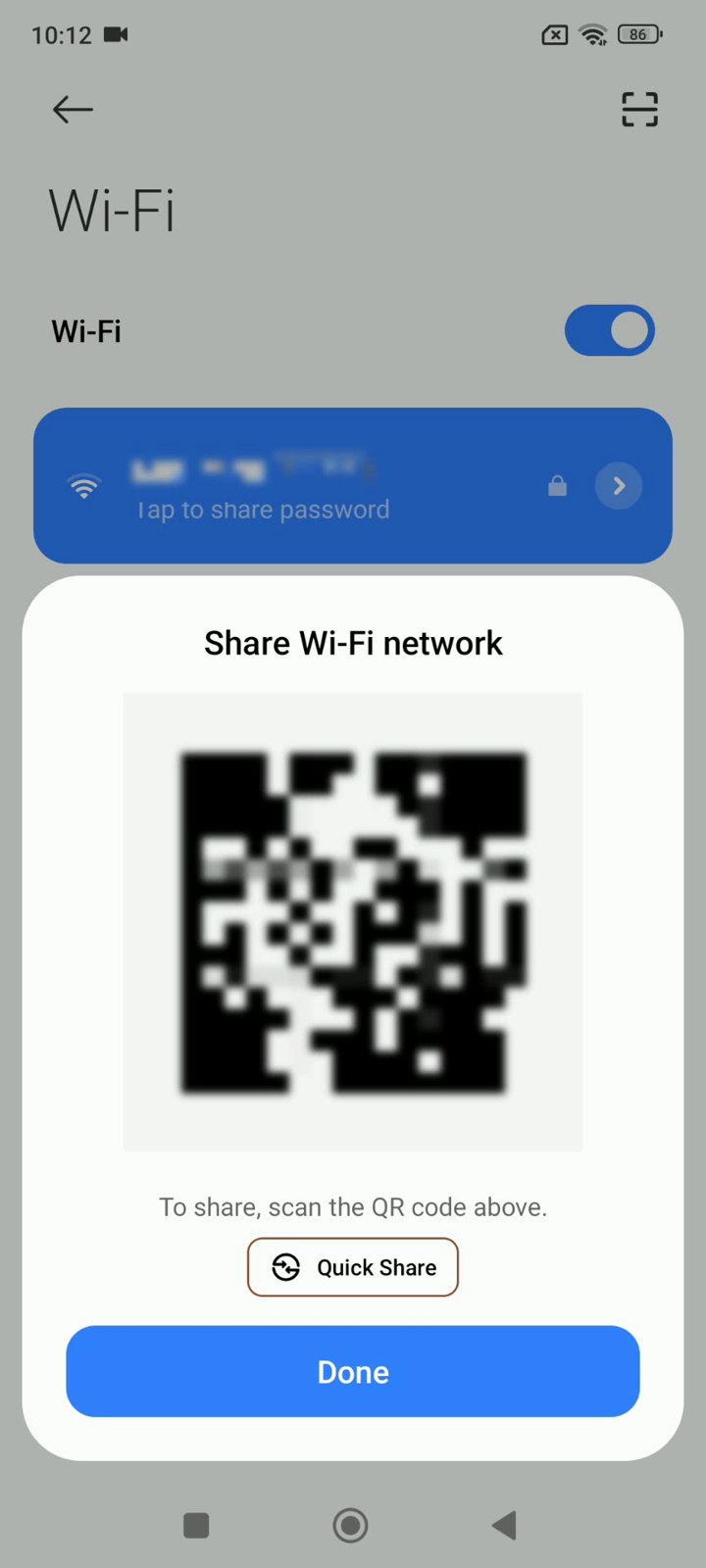
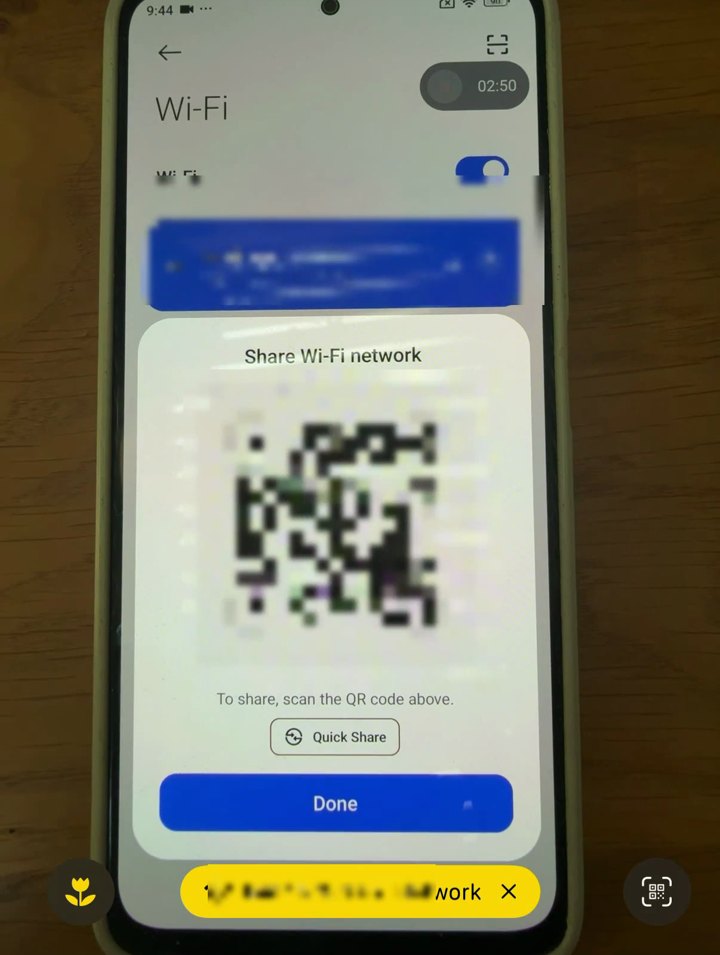
Samsung: Settings → Connections → Wi-Fi → tap the gear next to your network → QR code. Pixel: Settings → Network & internet → Internet → gear → Share (Pixel also shows the password as text).
2. Screenshot a whole web page, top to bottom
A normal screenshot only captures what’s on the screen. Chrome can capture the whole page as one long image, which is perfect for recipes, receipts and instructions.
- Open the page in Chrome and tap the 3 dots (top right).
- Tap Share, then Long Screenshot.
- Drag the bottom edge down to capture as much of the page as you want.
- Tap the check mark, then Save. The image goes to your gallery.
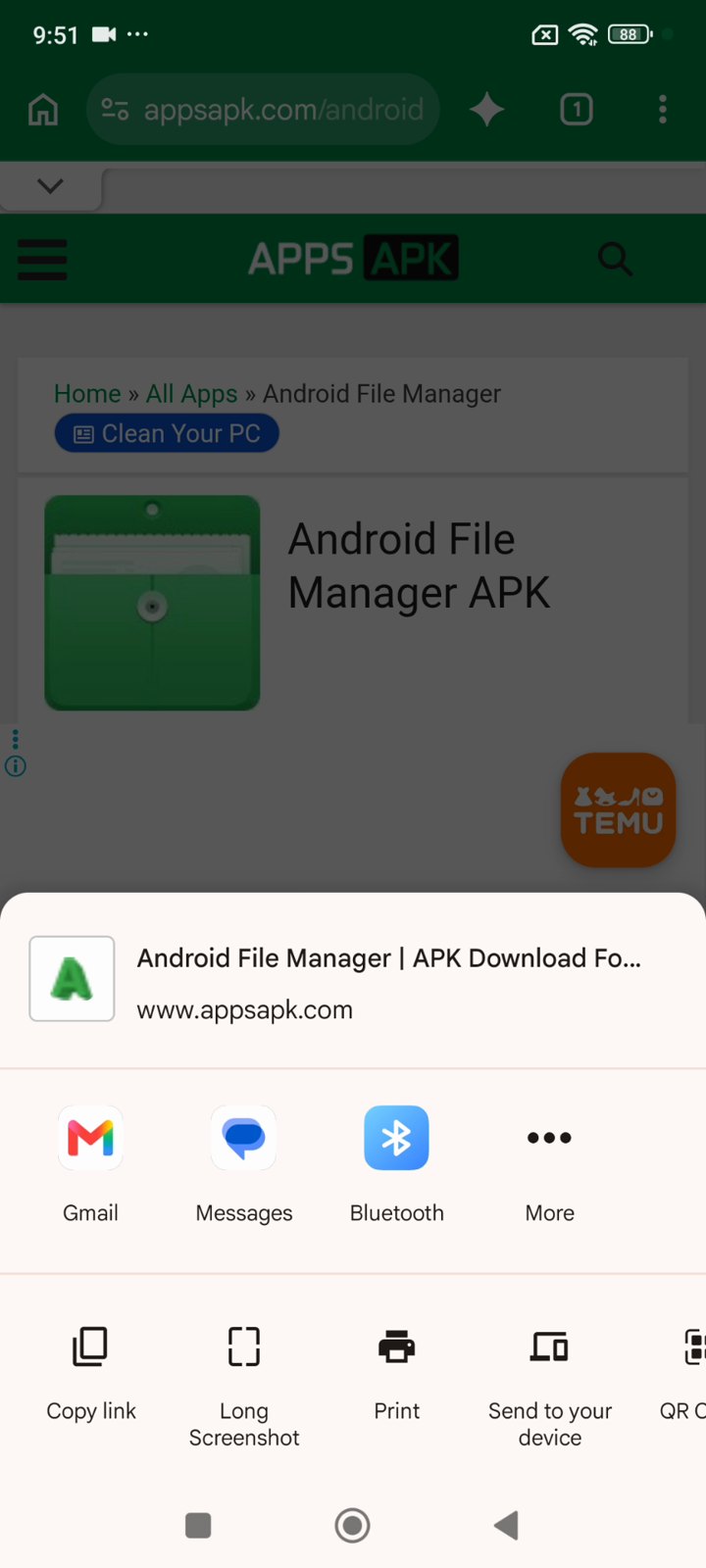
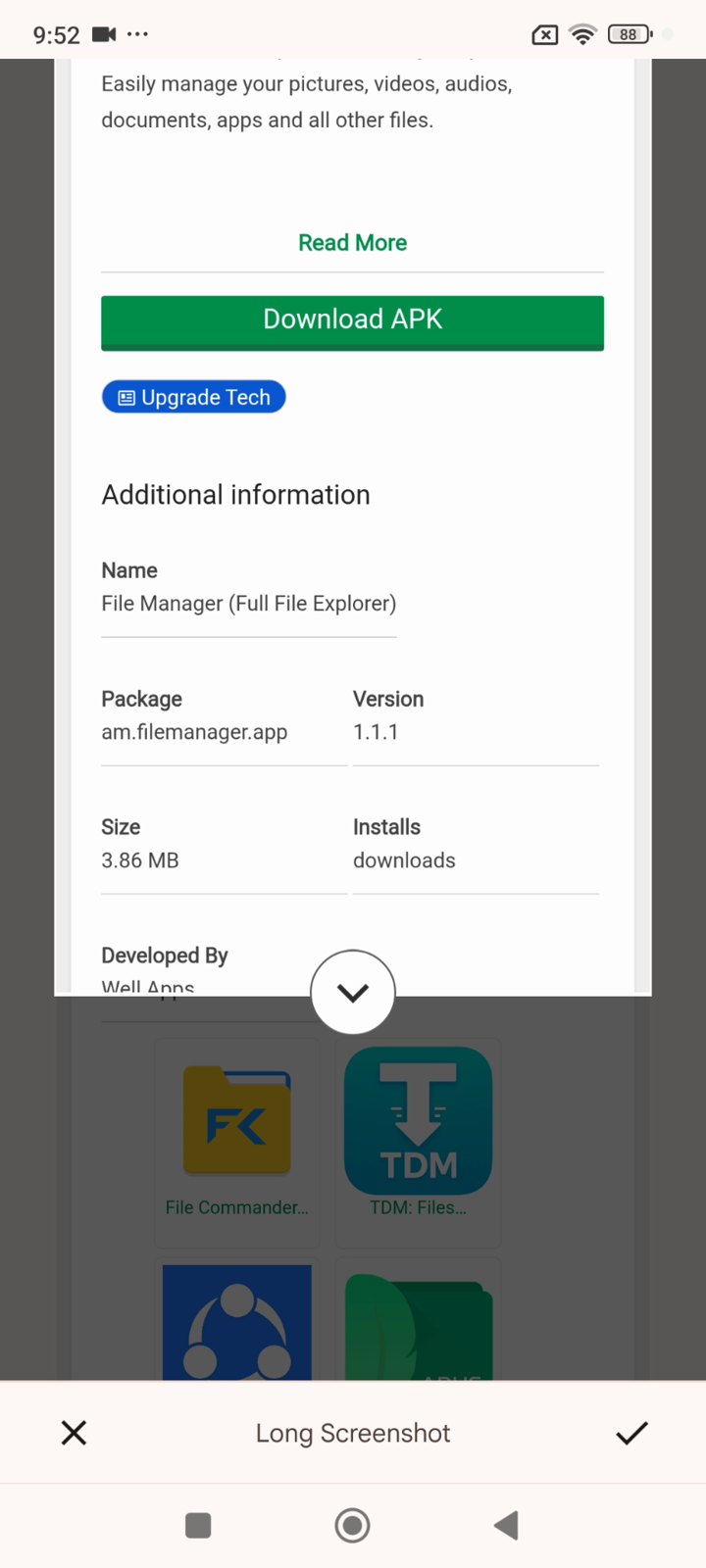
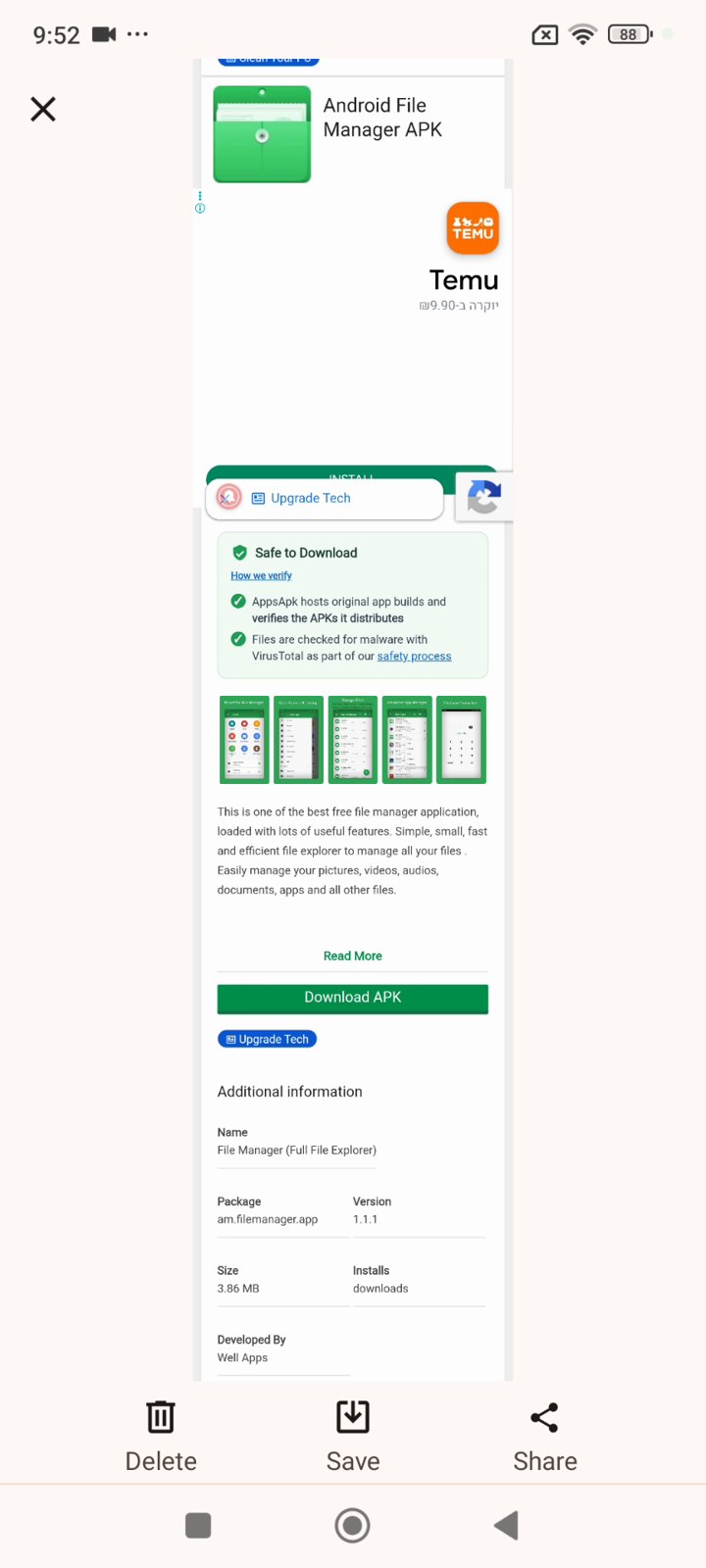
Tip: Xiaomi and Samsung phones also have a “Scroll” or “Scroll capture” button after a normal screenshot, but it often doesn’t work inside Chrome. Chrome’s own Long Screenshot always does.
3. Your phone reads paper out loud
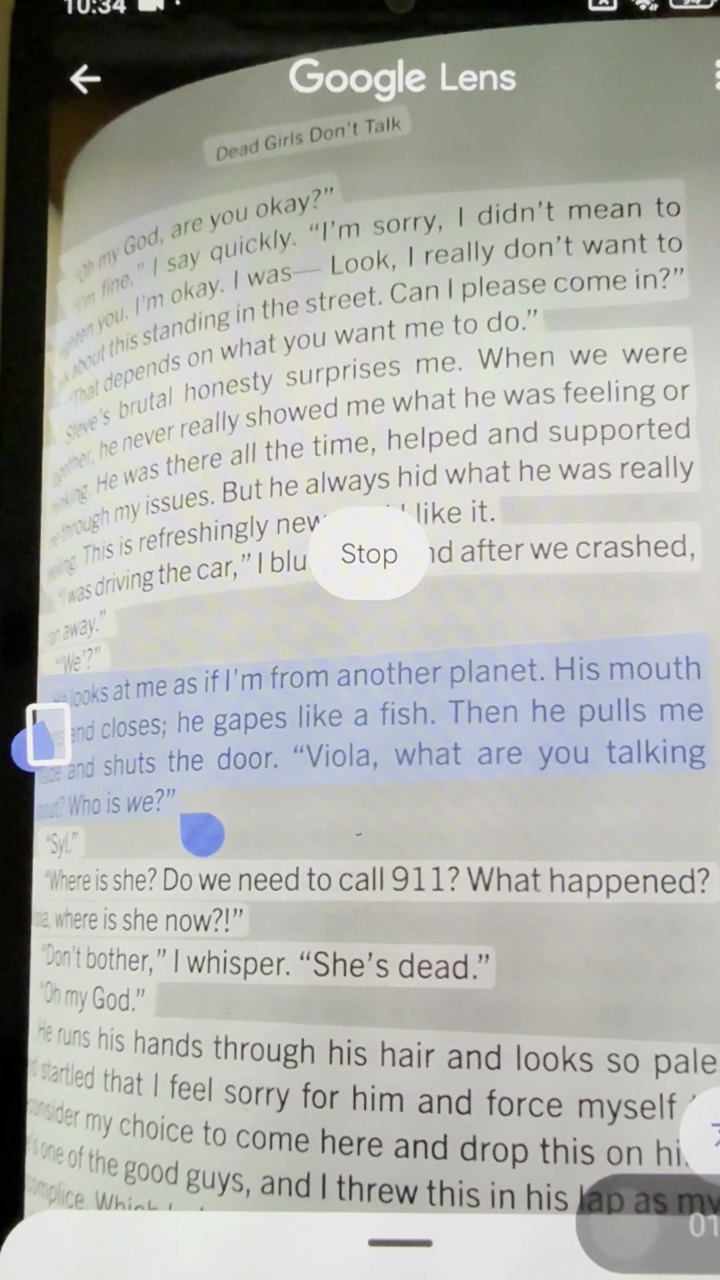
Point Google Lens at a book, a letter or a sign and your phone reads the text to you. It’s great for small print, for learning the pronunciation of a new language, or for anyone who finds reading hard.
- Open Google Lens and point it at the page.
- Tap the round button to take the picture.
- Drag over the text you want to hear.
- Tap Listen. The phone reads it out loud (tap Stop to end).
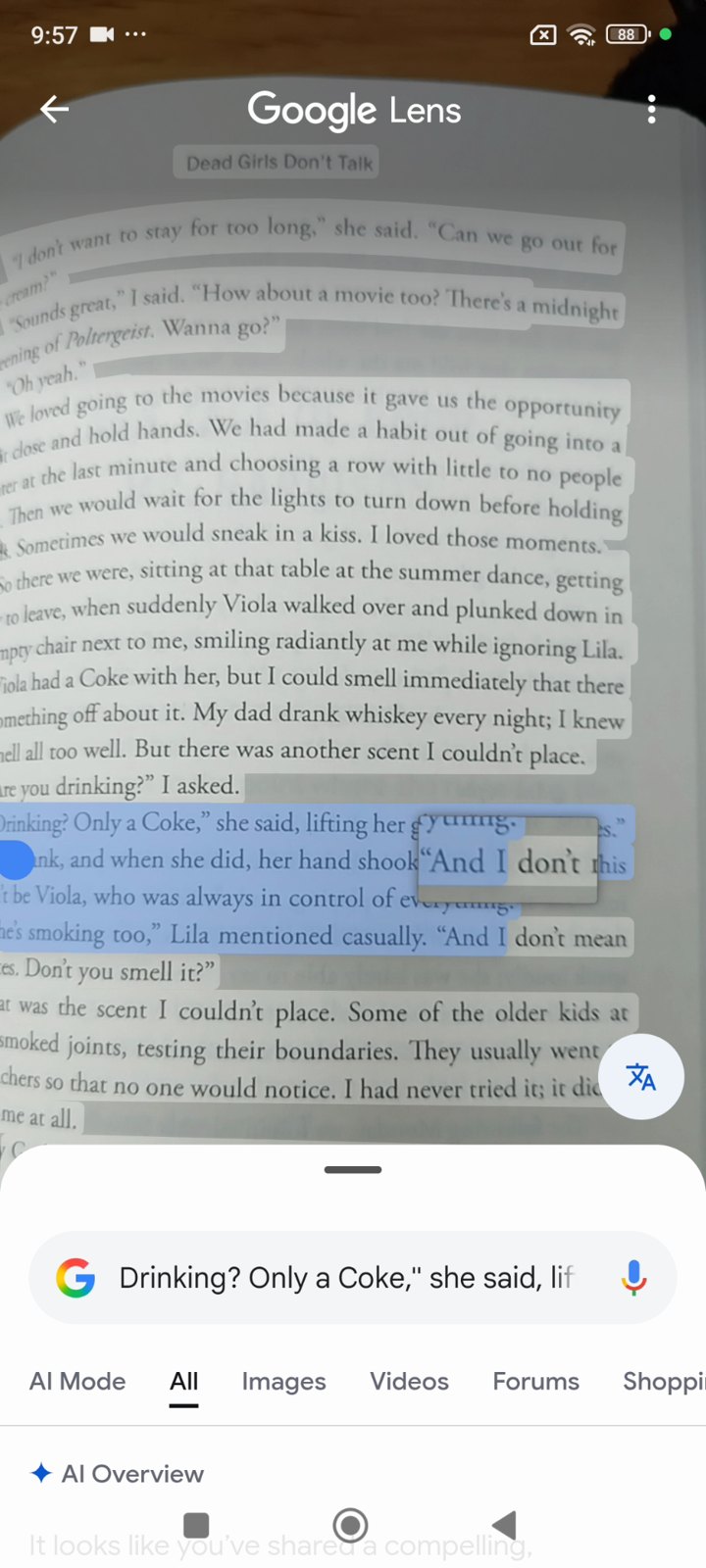
4. Translate any page into your language
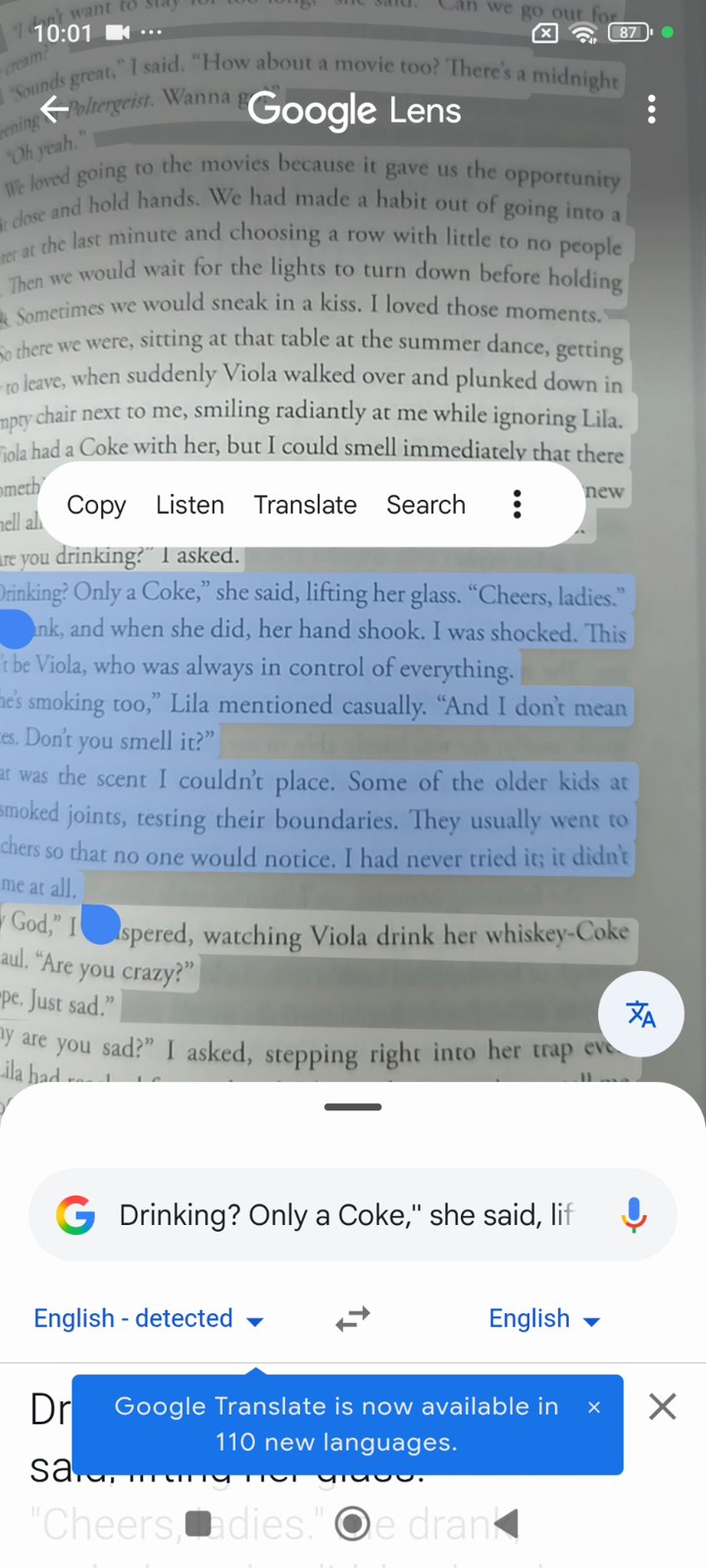
The same Lens picture can be translated in a second, into more than 100 languages, including Hindi, Bengali, Urdu, Indonesian and Portuguese. It uses Google Translate behind the scenes.
- In Google Lens, select the text and tap Translate.
- Tap the language on the right (it starts as English).
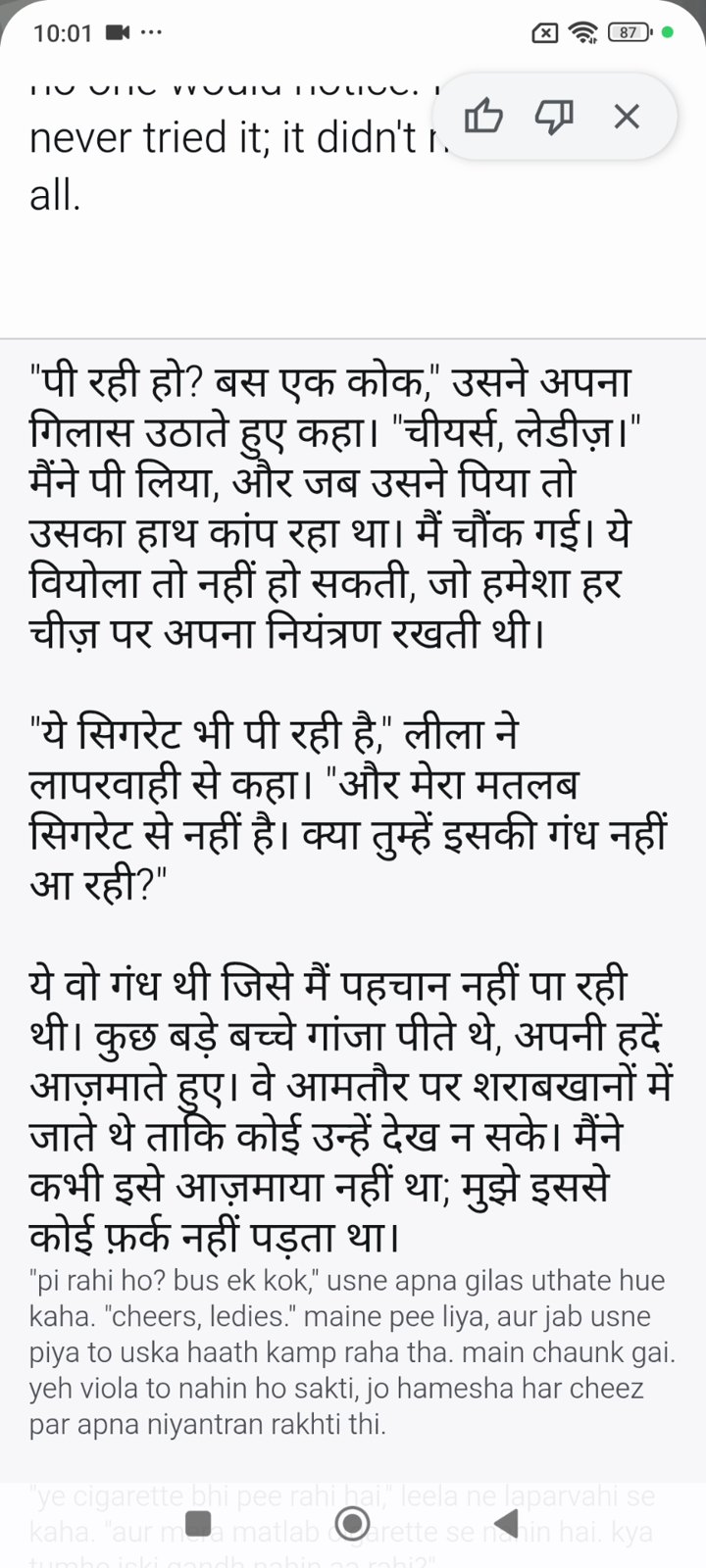
- Search for your language (we chose Hindi) and tap it.
- The whole page appears in your language. You can copy it or tap Listen.
5. Use two apps at once (split screen)
Watch a video while you chat, or follow a recipe while you shop. Split screen puts two apps on the screen together.
- Open both apps (for example YouTube and Chrome).
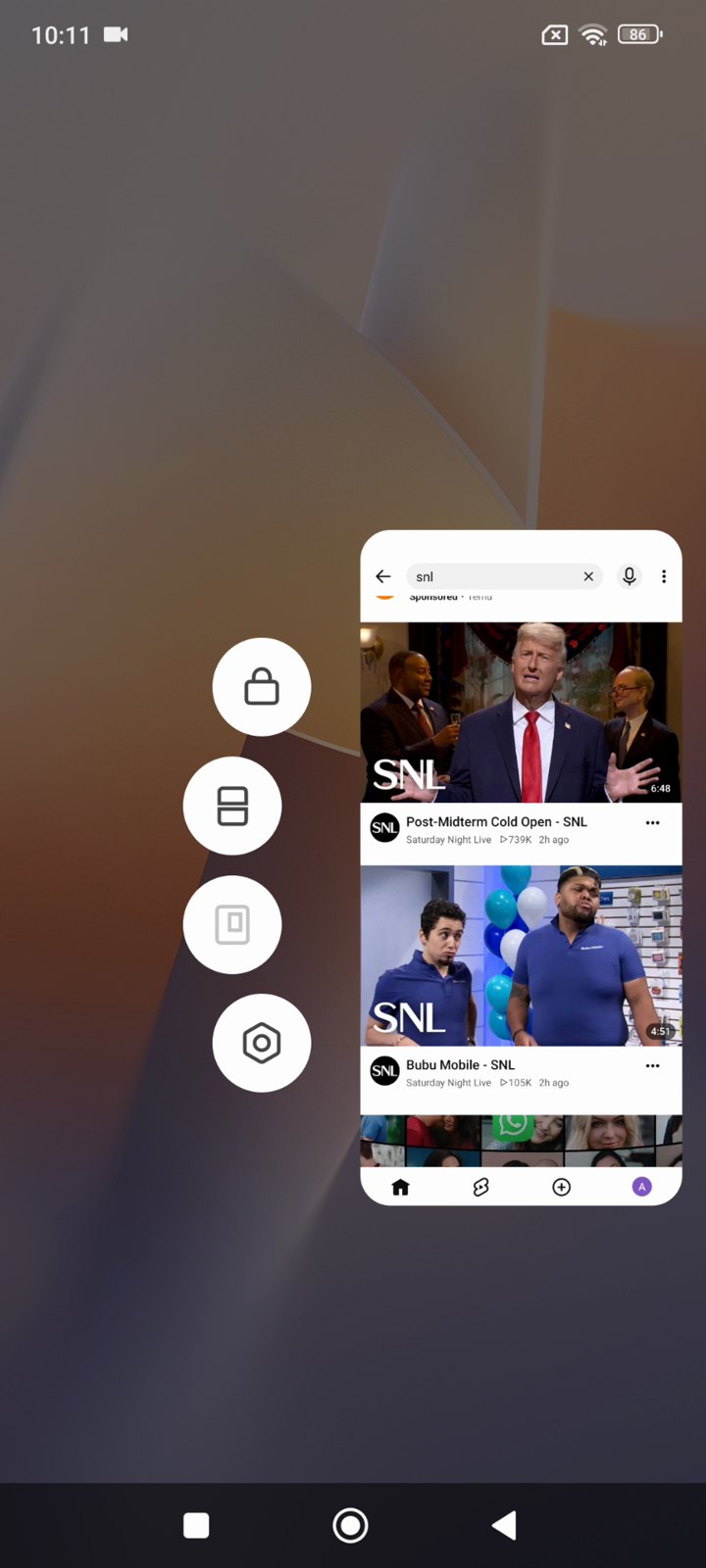
- Open recent apps: swipe up from the bottom and hold, or tap the square button.
- Long-press the first app’s card and tap the split screen icon.
- Tap the second app. Drag the line in the middle to change the sizes.
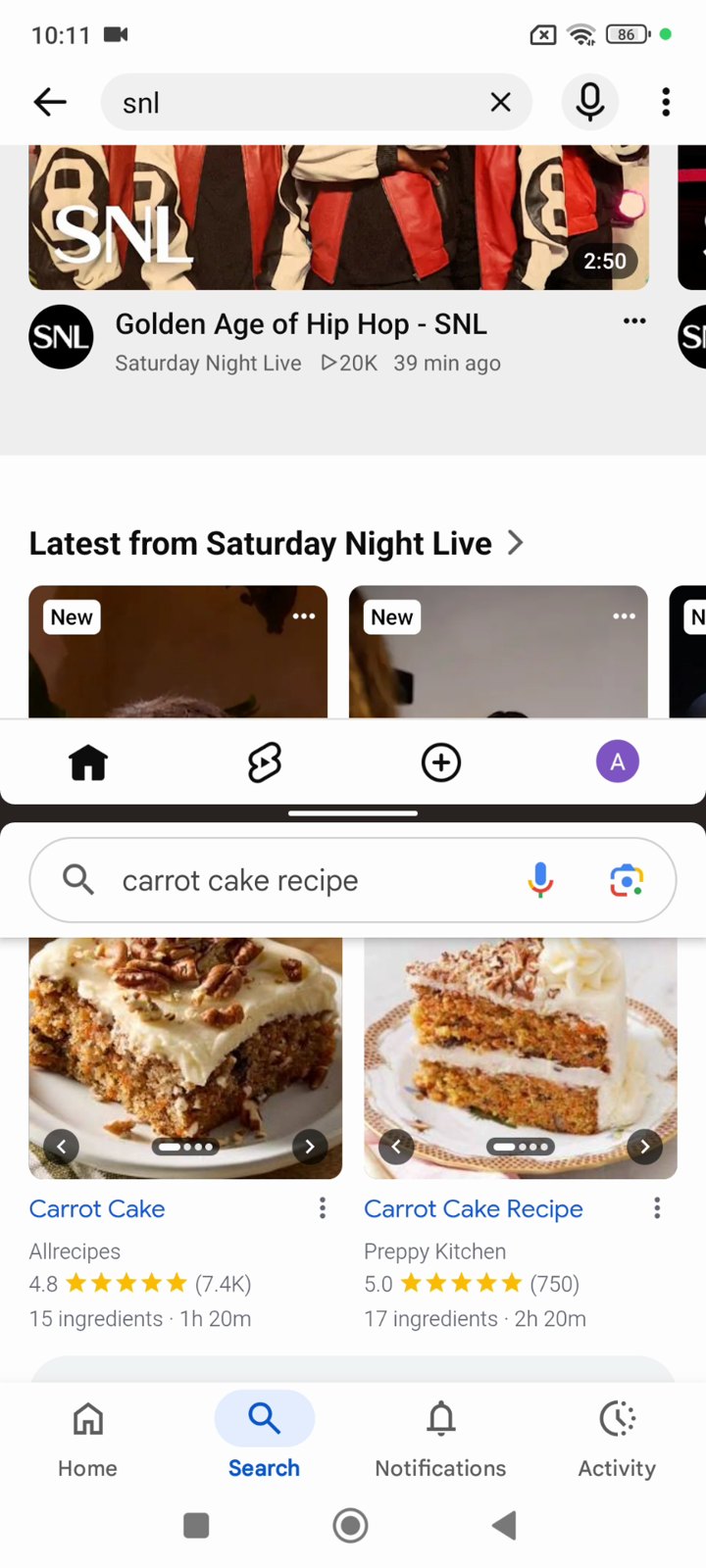
Samsung: recent apps → tap the app’s icon above its card → Open in split screen view. Pixel: recent apps → tap the app’s icon → Split screen.
Do these tricks work on every Android phone?
Yes, on almost every phone from Android 10 onwards. Wi-Fi sharing and split screen are built into Android; the long screenshot needs Chrome, and the read-aloud and translate tricks need the free Google Lens app. Menu names change a little between brands, but the steps are the same.
Want more quick Android tricks? Follow AppsApk on Instagram and get daily app picks on our Telegram channel.
















Leave a Comment