
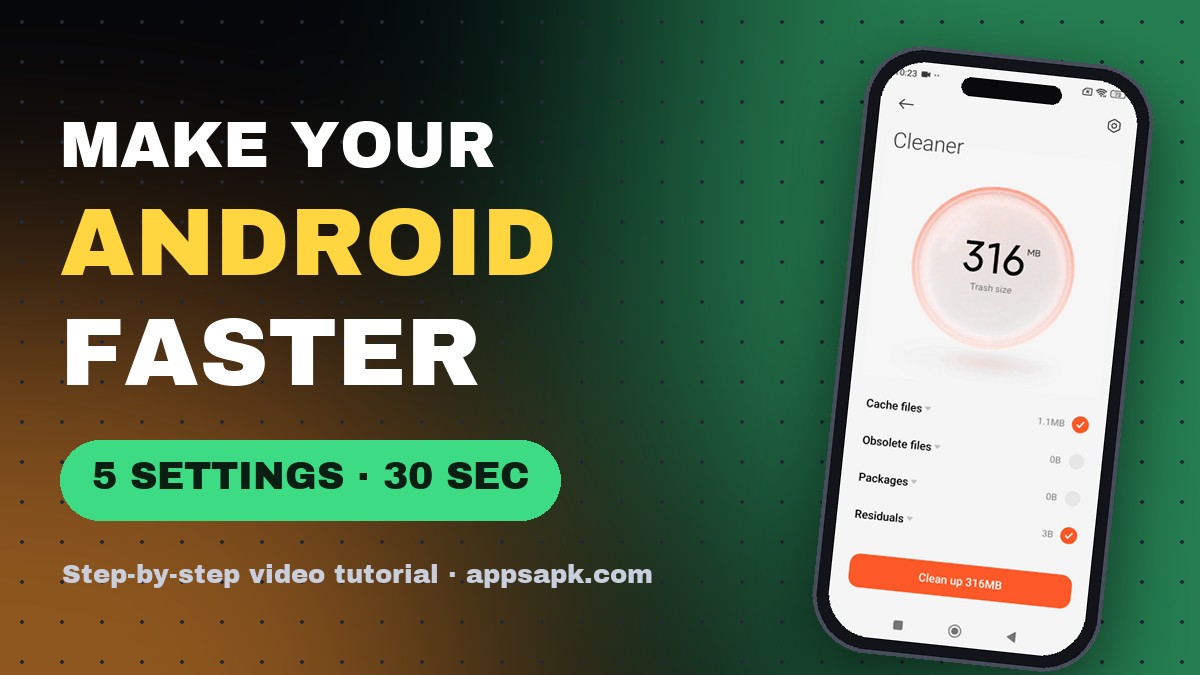
Quick answer: first unlock Developer options: Settings → About phone → tap “OS version” 7 times → “You are now a developer!”. Then (1) set the three animation scales to 0.5x in Developer options, (2) clear junk files with the built-in Cleaner, (3) uninstall apps you never open, (4) replace a live wallpaper with a static one and (5) switch heavy apps to their Lite versions. Together they take about 30 seconds and work on almost any Android phone, from budget models to flagships.
We tested every step on a Xiaomi Redmi Note 11 Pro 5G running HyperOS (Android 13). The menu names below are the Xiaomi/Redmi/POCO ones; on Samsung, Motorola and other brands the same options exist under slightly different names, which we point out where it matters. Watch the 40-second video first, then follow the screenshots.
Why does an Android phone get slow?
A phone rarely gets slower because the hardware wears out. It slows down because of what piles up on it: cached files from dozens of apps, apps that keep running in the background, heavy home-screen effects and big apps that were built for newer, stronger phones. The five settings below remove exactly those bottlenecks, without deleting your photos, chats or accounts.
Before you start: unlock Developer options
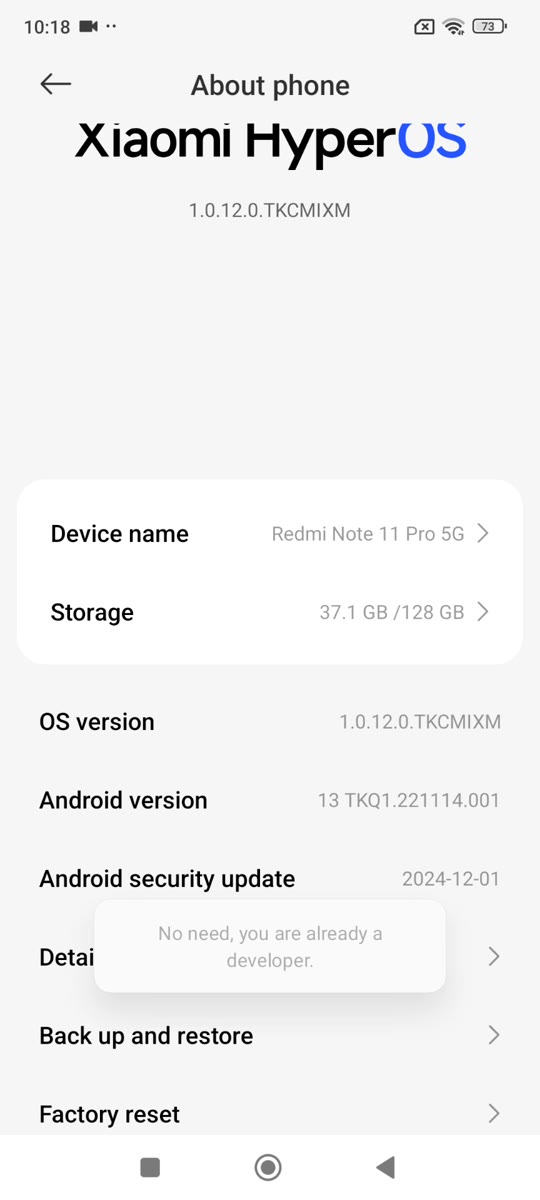
The biggest speed boost (step 1) lives in a hidden menu called Developer options. It is switched off on every new phone and most people have never seen it. Unlocking it takes 10 seconds and is completely safe:
Settings → About phone → tap “OS version” 7 times → “You are now a developer!”
- Open Settings.
- Tap About phone (at the top of Settings on Xiaomi/Redmi/POCO).
- Find OS version (called MIUI version on older Xiaomi phones) and tap it 7 times in a row. After a few taps a countdown appears: “You are 3 steps away from being a developer”.
- When you see “You are now a developer!”, you are done. If the phone asks for your PIN or pattern, enter it. If it says “No need, you are already a developer”, the menu was already unlocked.
Samsung: Settings → About phone → Software information → tap Build number 7 times. Pixel and most other phones: Settings → About phone → tap Build number 7 times.
1. Set the animation scales to 0.5x
Every time you open an app or go back to the home screen, Android plays a short animation. Halving those animations makes the whole phone feel noticeably snappier.
- Open Settings > Additional settings > Developer options (on Samsung and Pixel: Settings > Developer options, at the bottom of the list).
- Scroll to Window animation scale, Transition animation scale and Animator duration scale and set all three to 0.5x.
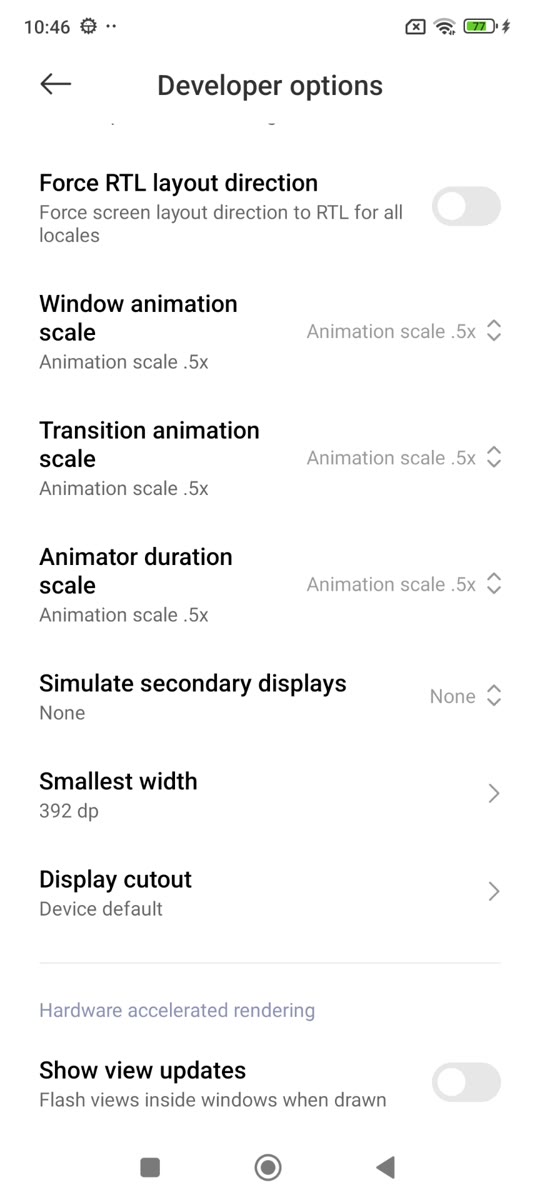
Tip: setting them to Off makes the phone feel even faster, but 0.5x keeps the small visual cues that tell you an app is opening.
2. Clean junk files with the built-in Cleaner
Apps leave cache files, leftovers from uninstalled apps and old installation packages behind. On our test phone the Cleaner found 316 MB of junk on the first scan.
- Open the Security app (shield icon) and tap Cleaner.
- Wait for the scan to finish, check the categories (cache, obsolete files, packages, residuals) and tap Clean up.
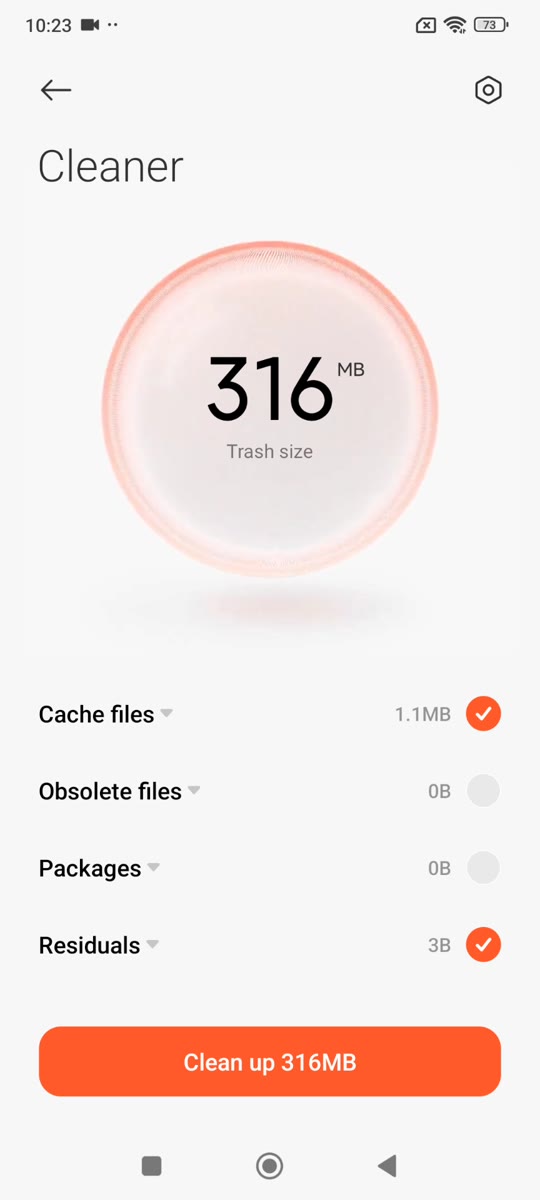
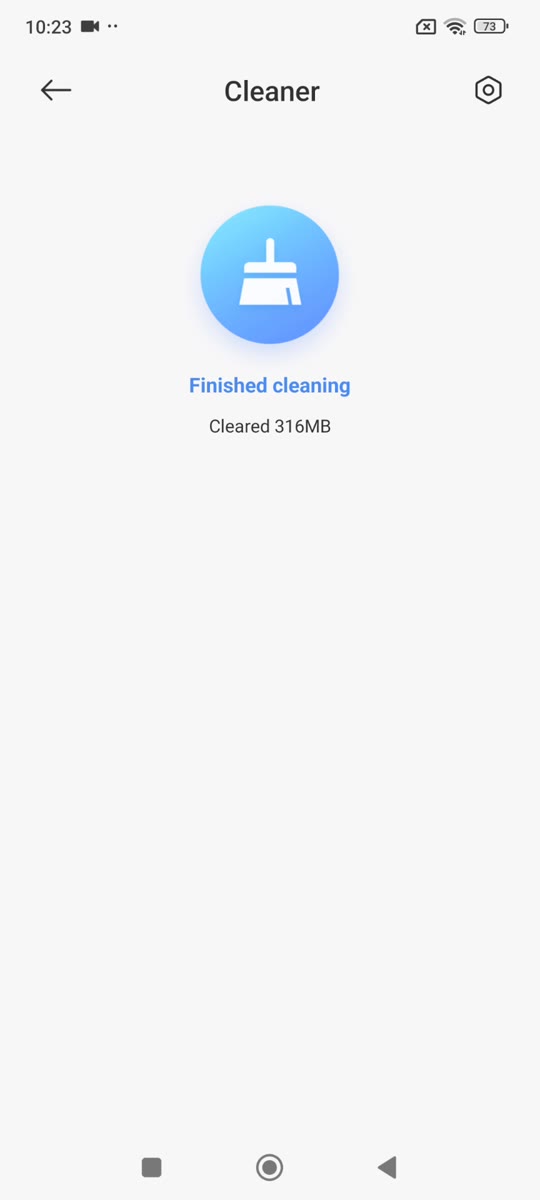
On other brands use Settings > Storage > Free up space (Google Files on Pixel and many others) or Device care on Samsung. Cleaning the cache is safe: apps simply rebuild what they need.
3. Uninstall apps you never open
Every installed app takes storage, and many also wake up in the background to sync, show notifications or track your location. Removing the ones you never use frees memory and battery at the same time.
- Open Settings > Apps > Manage apps.
- Sort by size or scroll the list and tap an app you don’t use.
- Tap Uninstall and confirm with OK.
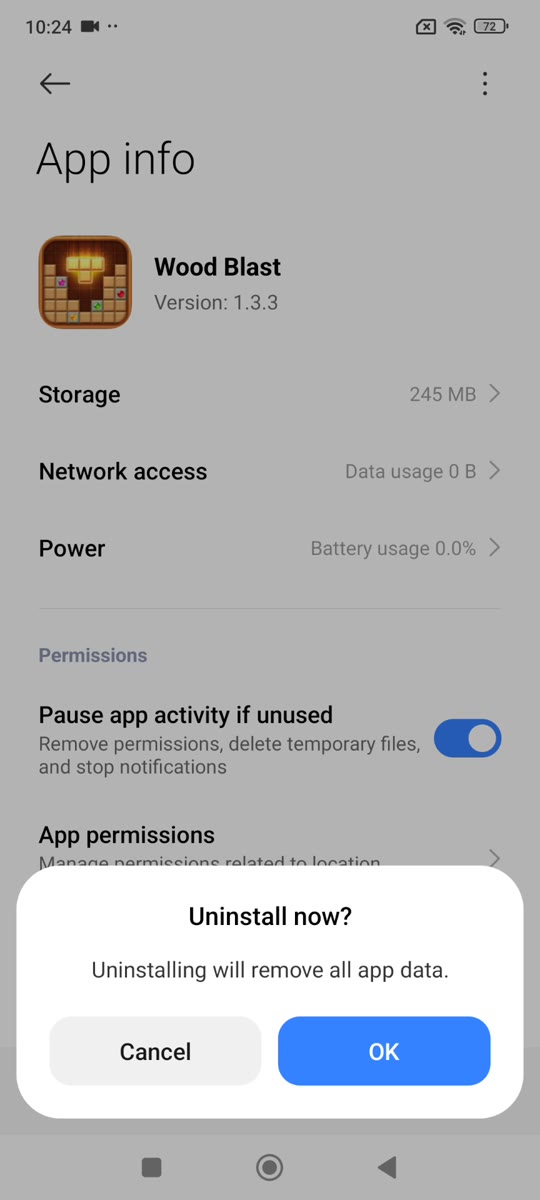
Games are usually the biggest; one unused game can take 200 MB or more.
4. Switch to a static wallpaper
Live (animated) wallpapers keep the graphics chip busy every time you look at the home or lock screen, which costs speed and battery. A good static wallpaper looks just as nice.
- Long-press an empty spot on the home screen and choose Wallpapers.
- Pick a normal (static) image and tap Apply, then Set as both.
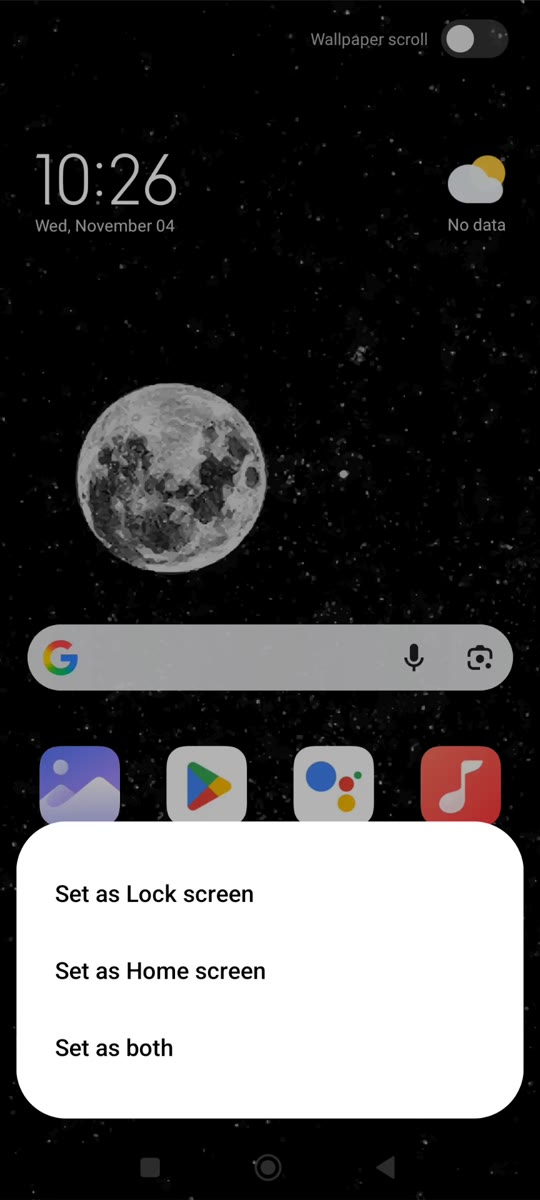
5. Use Lite versions of big apps
Facebook, Messenger and several other popular apps have Lite versions built for slower phones and weaker connections. They are a fraction of the size, use less data and open faster.
- Open the Play Store and search for the Lite app, for example Facebook Lite.
- Install it, log in, and uninstall the full app if you no longer need it.
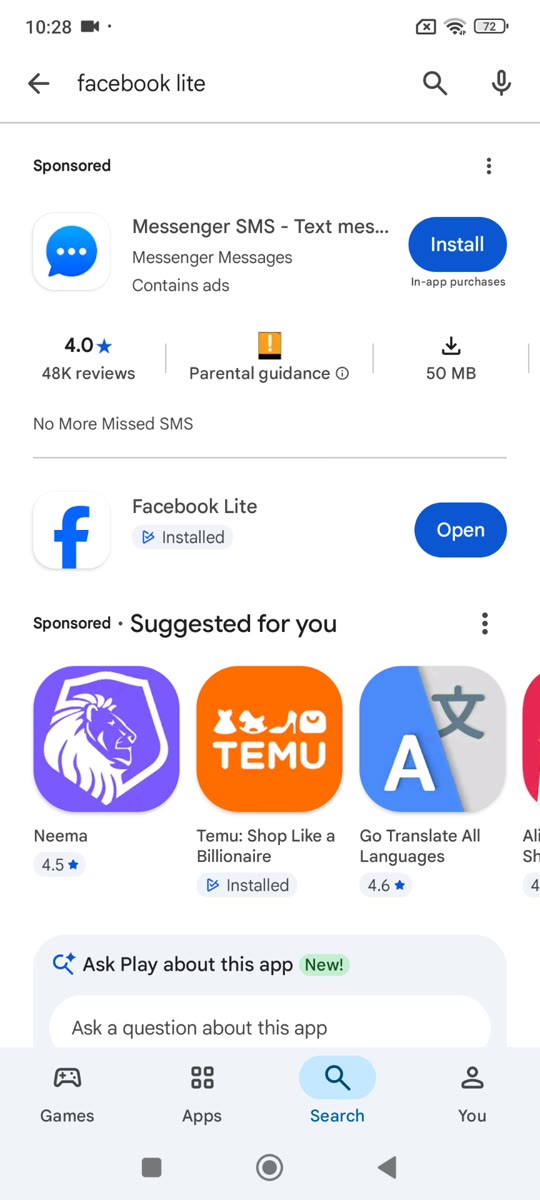
Good Lite and light alternatives: Facebook Lite, Messenger Lite-style messengers, Google Go, Gallery Go and lightweight browsers. You can find them all on AppsApk.
How much faster will my phone be?
On our test phone, apps opened visibly faster after the animation change alone, and the Cleaner freed 316 MB in under 10 seconds. The biggest gains come on phones that are low on storage: Android slows down sharply when the internal memory is more than about 85% full, so steps 2 and 3 matter most there.
Bonus tips
- Restart your phone once a week: it clears memory leaks that build up over time.
- Keep apps updated: new versions often fix speed and battery problems.
- Turn off auto-start for apps that don’t need it (Security app > Manage apps > Autostart on Xiaomi).
Want more quick Android tricks? Follow AppsApk on Instagram and get daily app picks on our Telegram channel.


















Leave a Comment