
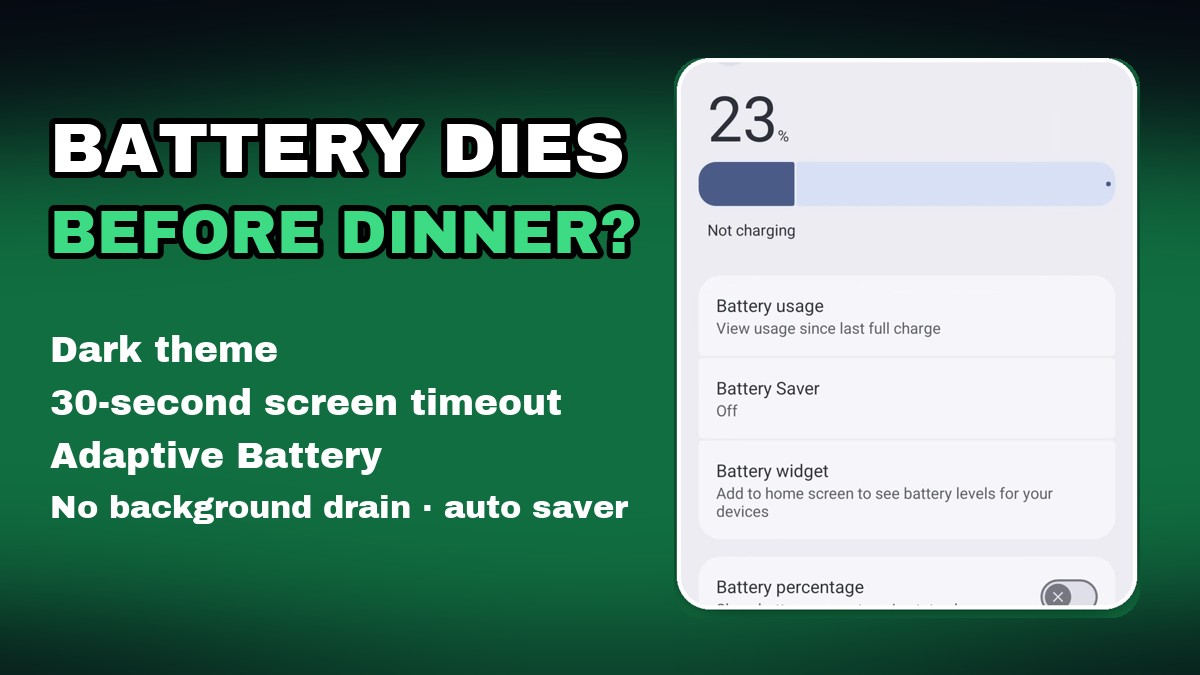
Quick answer: to make your Android battery last longer, (1) turn on Dark theme, (2) set the screen timeout to 30 seconds, (3) turn on Adaptive Battery, (4) switch off background usage for apps that drain power, and (5) let Battery Saver turn on by itself at 20%. Before you start, turn on Battery percentage so you can see the difference. All five take about a minute.
We recorded every step on Android 16 (the Google Pixel version of Android). The menu names below are Google’s; Samsung and Xiaomi phones have the same settings under slightly different names, which we list in each step. Watch the one-minute video first, then follow the screenshots.
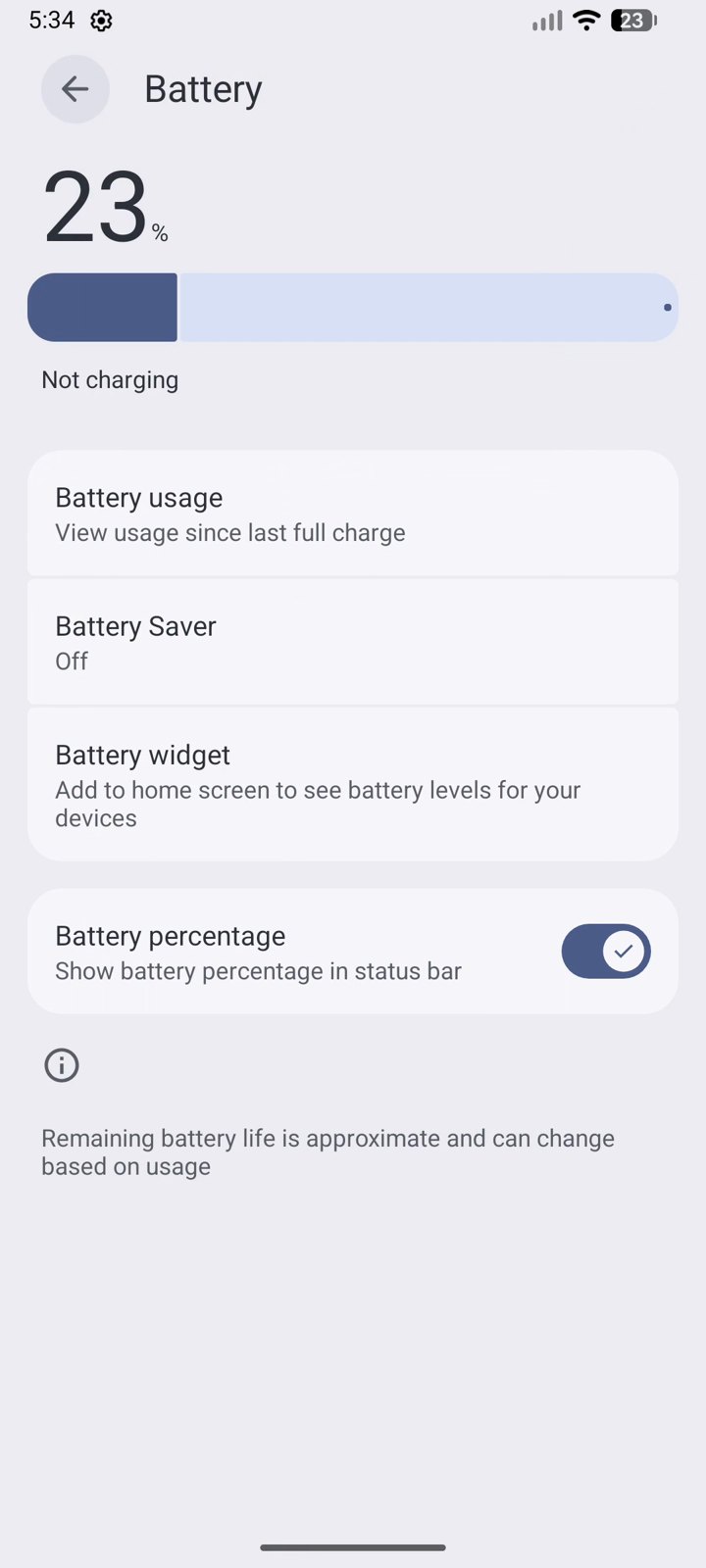
Before you start: turn on Battery percentage
The battery icon alone hides small changes. With the exact percentage in the status bar you will see how much longer the phone lasts after these settings.
Settings → Battery → Battery percentage (Samsung: Settings → Notifications → Status bar → Show battery percentage. Xiaomi: Settings → Notifications & status bar → Battery indicator).
1. Turn on Dark theme
On phones with an OLED (AMOLED) screen, which includes most mid-range and flagship phones, black pixels are switched off and use almost no power. A dark interface saves the most in apps you use for hours, like messaging and social media.
- Open Settings → Display & touch (on many phones just Display).
- Turn on Dark theme.
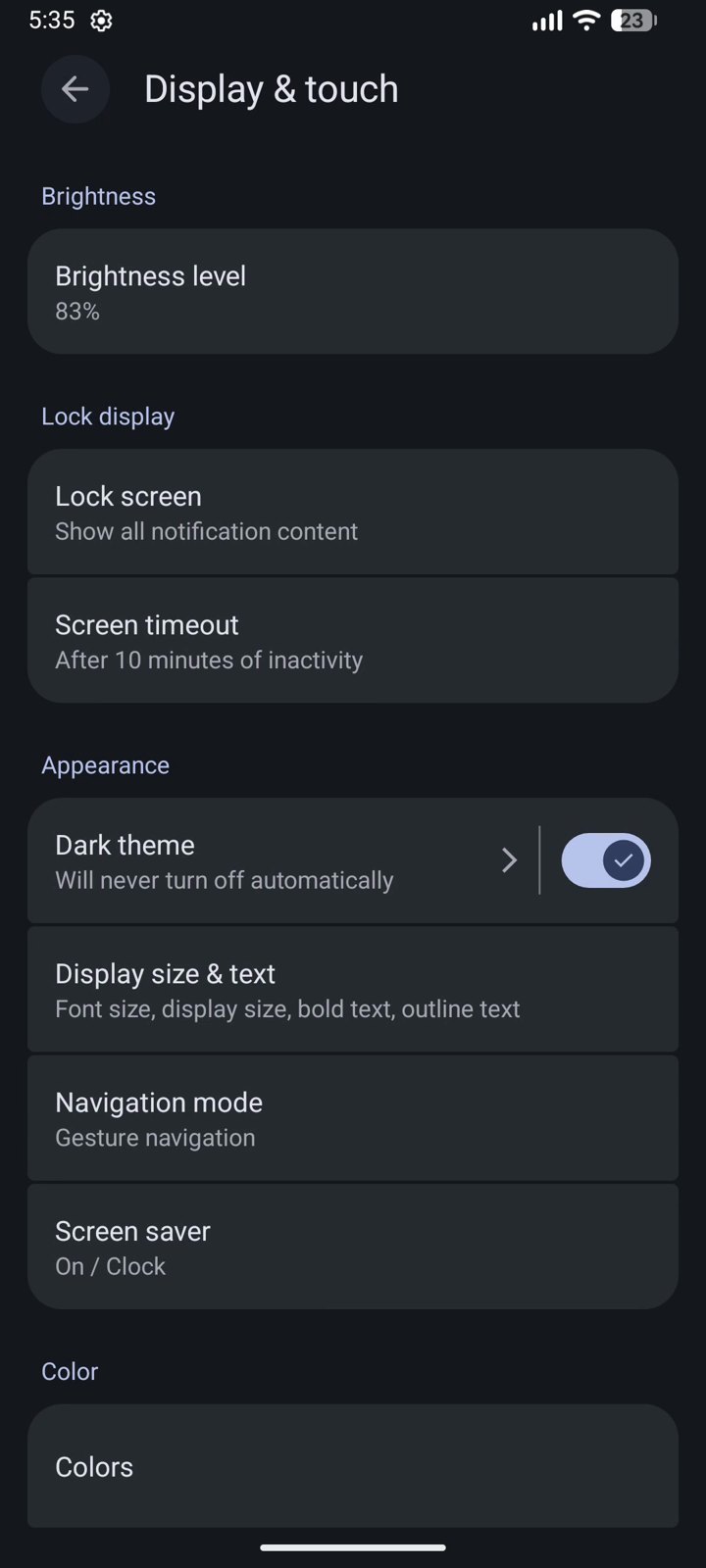
Samsung: Settings → Display → Dark. Xiaomi: Settings → Display & brightness → Dark mode. On phones with an LCD screen dark mode saves little, but the other four steps still help.
2. Set the screen timeout to 30 seconds
The screen is the biggest power user on almost every phone. If yours stays on for 5 or 10 minutes after you put it down, that power is wasted many times a day.
- Open Settings → Display & touch → Screen timeout.
- Choose 30 seconds.
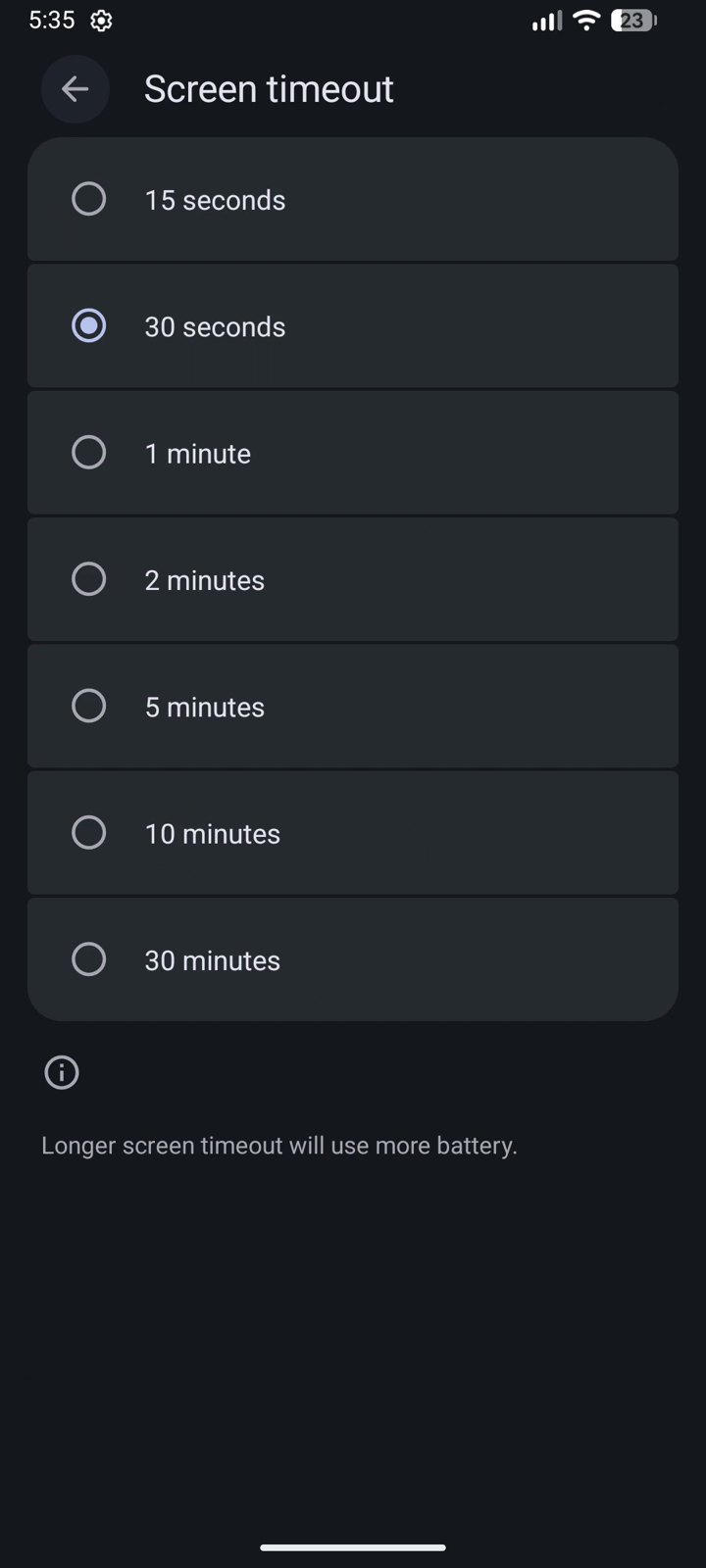
Samsung: Settings → Display → Screen timeout. Xiaomi: Settings → Always-on display & Lock screen → Sleep.
3. Turn on Adaptive Battery
Adaptive Battery learns which apps you use and limits the ones you rarely open, so they can’t wake the phone and drain it in the background. Notifications from those apps may arrive a little later.
- Open Settings → Battery → Battery Saver.
- Tap Adaptive Battery and turn on Use Adaptive Battery.
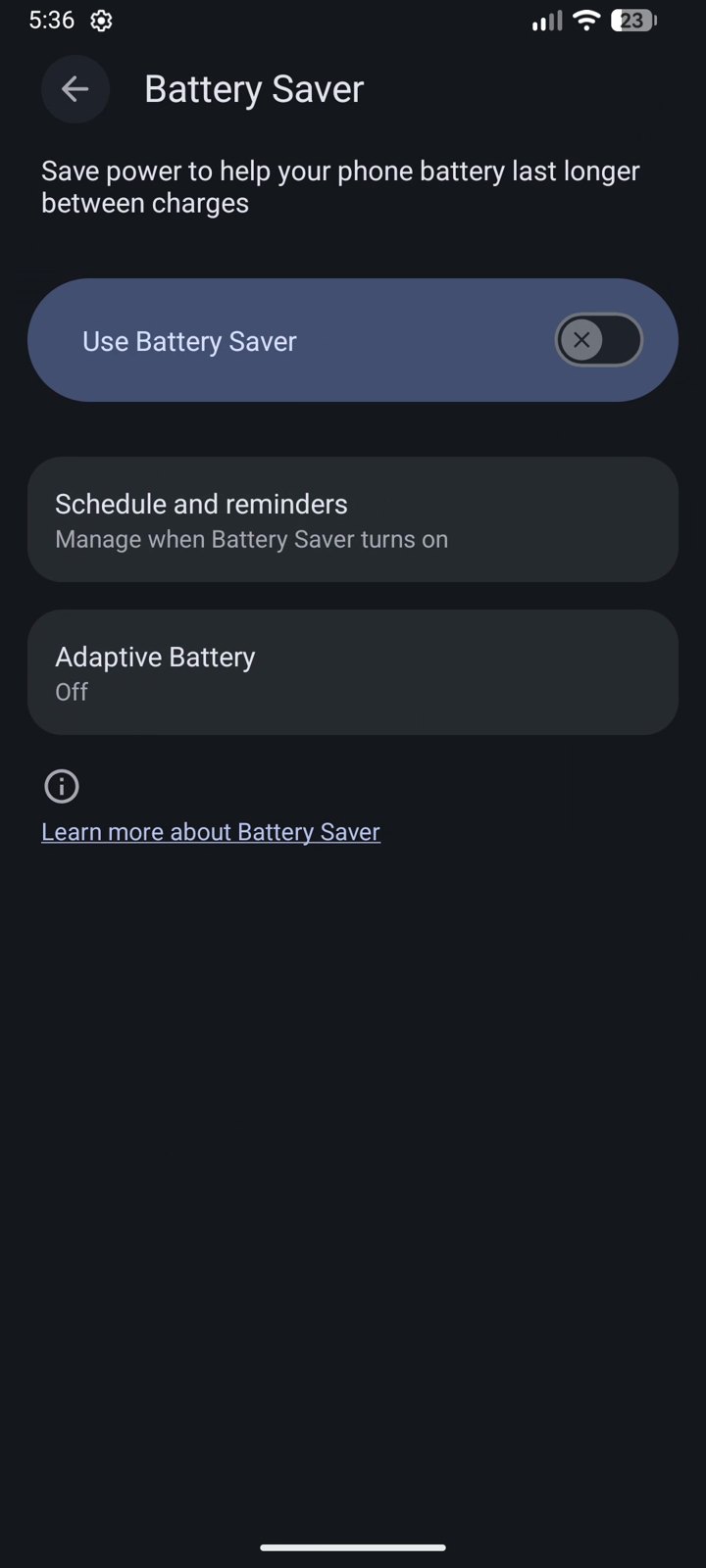
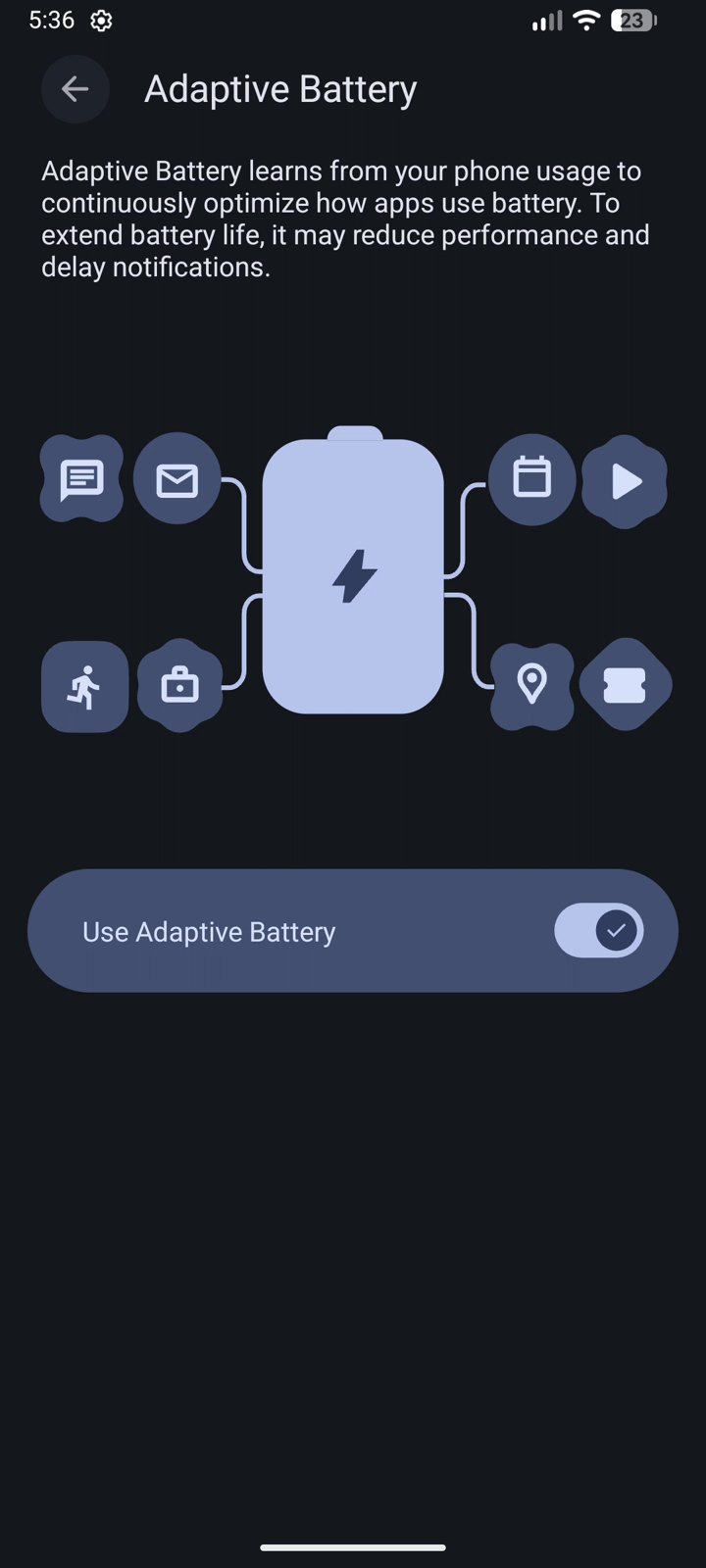
On some Pixel versions it’s under Settings → Battery → Adaptive preferences. Samsung: Settings → Battery → More battery settings → Adaptive battery.
4. Stop a hungry app from running in the background
Some apps keep working after you close them: syncing, checking location, loading ads. If one app uses a lot of battery, block its background use.
- Open Settings → Apps and tap the app (we used YouTube).
- Tap App battery usage.
- Turn off Allow background usage.
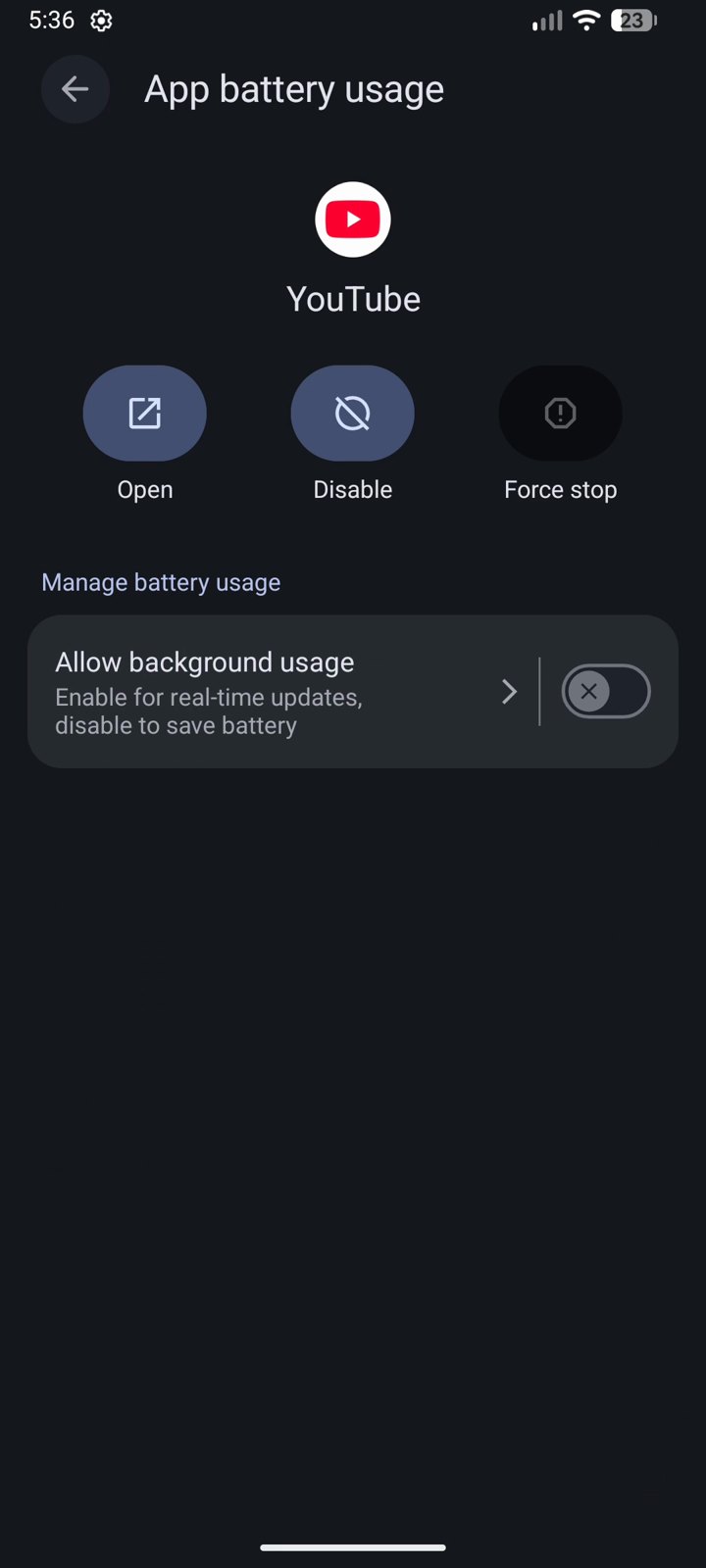
Don’t do this for messaging apps, alarms or fitness trackers, or you may miss messages. Samsung: Settings → Apps → the app → Battery → Restricted. Xiaomi: Settings → Apps → Manage apps → the app → Battery saver → Restrict background activity.
5. Let Battery Saver switch on by itself at 20%
Battery Saver dims some effects, pauses background work and stretches the last part of your charge. Scheduling it means you never forget to turn it on.
- Open Settings → Battery → Battery Saver → Schedule and reminders.
- Turn on Turn on based on battery level and set it to 20%.
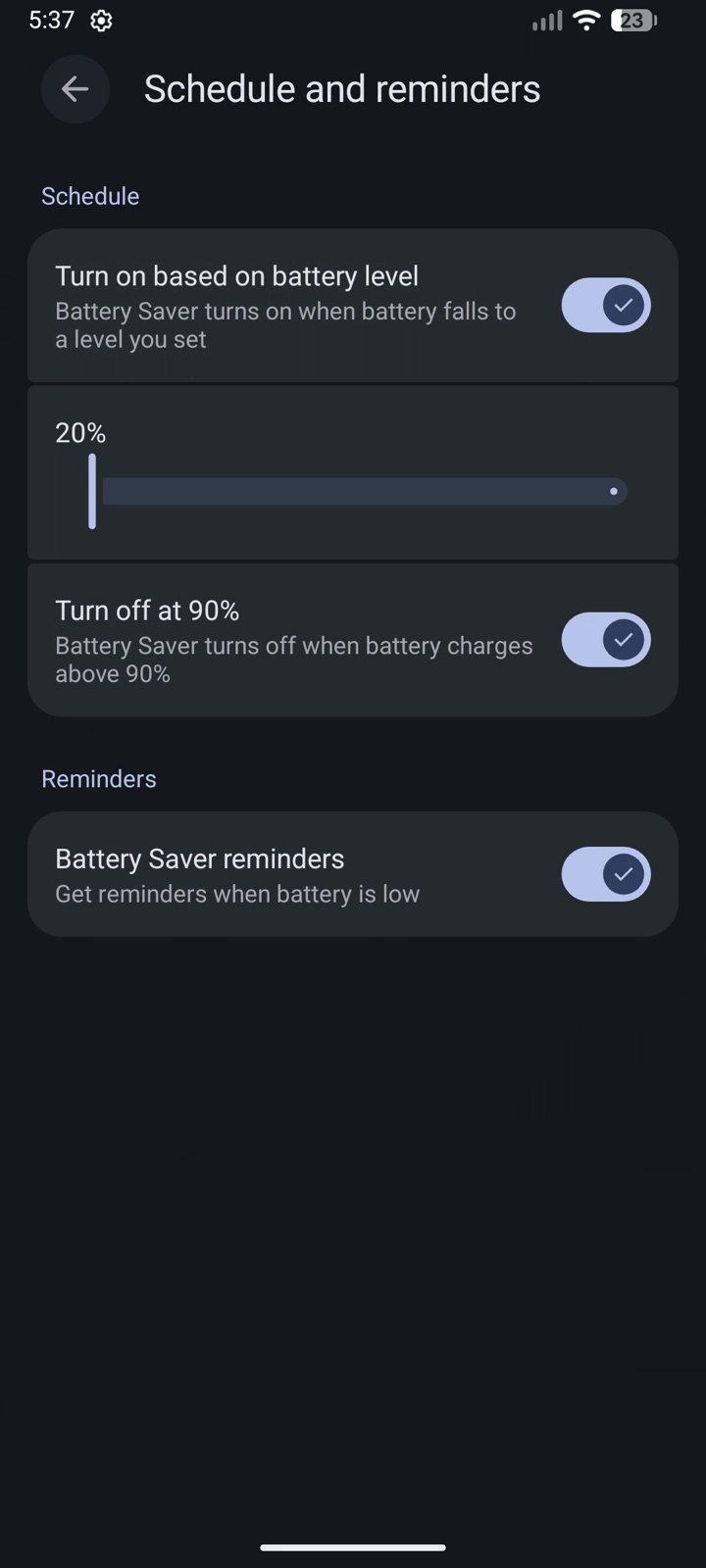
By default it turns off again once the phone charges above 90%. Samsung: Settings → Battery → Power saving. Xiaomi: Settings → Battery → Battery saver.
Which apps drain my battery the most?
Open Settings → Battery → Battery usage after a normal day of use. The list shows which apps used the most power since the last full charge. Video, games, navigation and social media apps are usually at the top; if an app you barely opened is there, it is the one to restrict in step 4.
Want your phone to feel quicker too? Here’s how to make your Android phone faster, and while you’re in Settings, check these 5 Android privacy settings.
Want more quick Android tricks? Follow AppsApk on Instagram and get daily app picks on our Telegram channel.


















Leave a Comment