
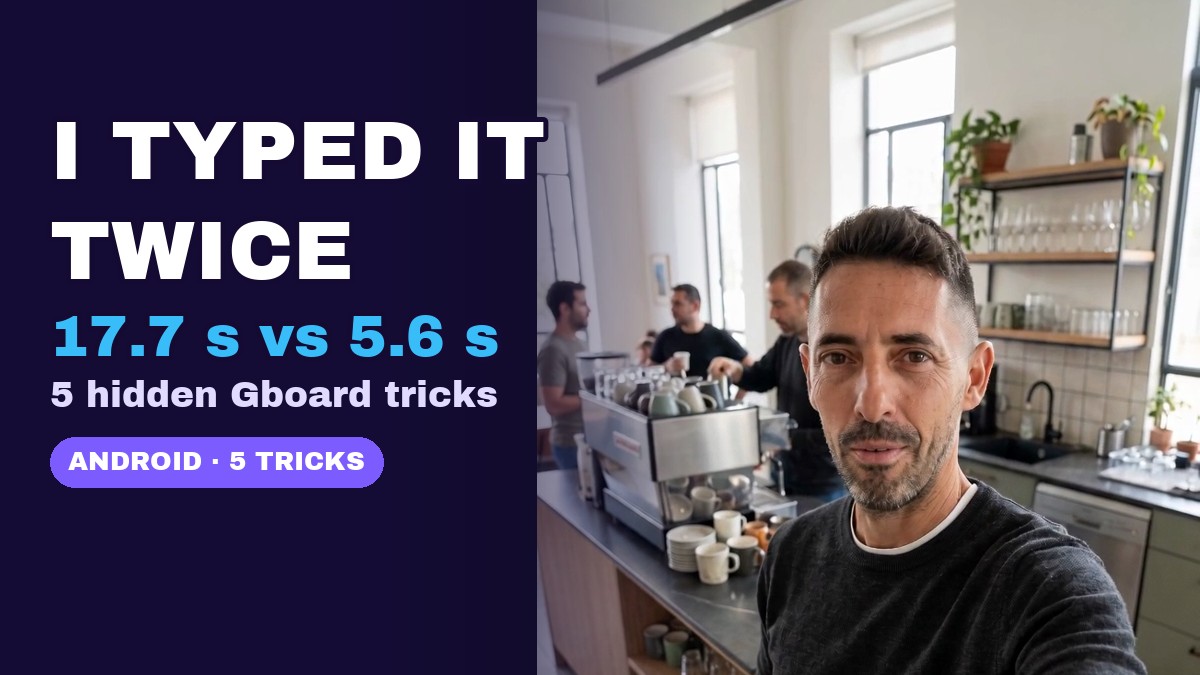
Quick answer: in Gboard, Google’s keyboard on most Android phones, you can (1) slide on the space bar to move the cursor, (2) paste copied text with one tap from the bar above the keys, (3) translate while you type, (4) switch to one-handed mode and (5) search emojis by word. All five are free and built in.
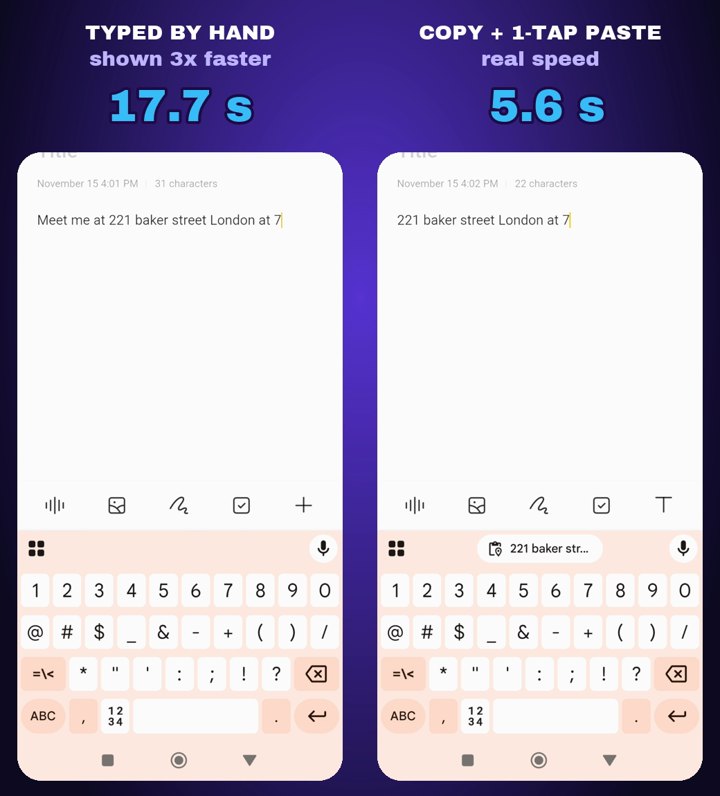
We tested it for real: Yaron typed the same message twice on his own phone. Typing everything by hand took 17.7 seconds; with the address copied once and pasted with one tap, it took 5.6 seconds. Watch the one-minute video, then follow the screenshots. The tricks were recorded on Android 16 with Gboard; Samsung Keyboard has its own versions of most of them in its toolbar.
Before you start: make sure Gboard is your keyboard
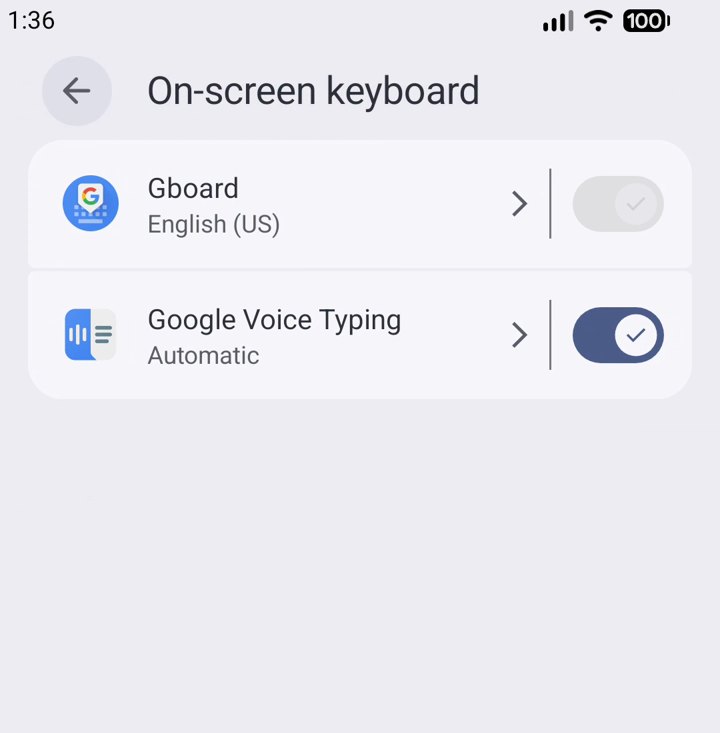
These tricks are Gboard features. Most Android phones already use it; check in a few seconds:
Settings → System → Keyboard → On-screen keyboard and look for Gboard (Xiaomi: Settings → Additional settings → Languages & input → Manage on-screen keyboards. Samsung: Settings → General management → Keyboard list and default). If it isn’t there, install Gboard and choose it as the default.
1. Slide on the space bar to move the cursor
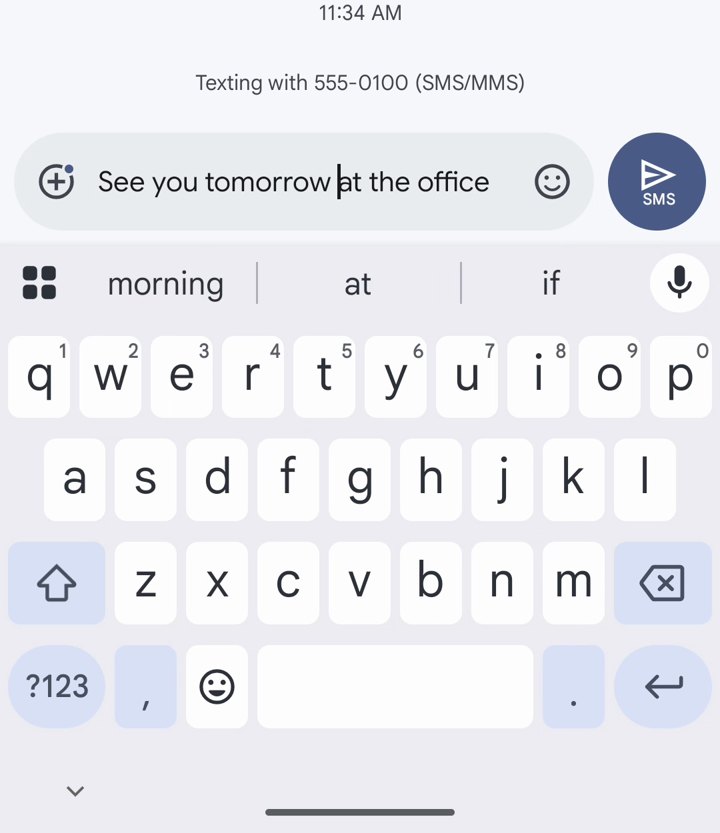
Tapping exactly between two letters is hard on a small screen. Instead, hold the space bar and slide left or right: the cursor follows your thumb, one character at a time. It’s perfect for adding a forgotten word in the middle of a sentence.
- Type your message.
- Hold the space bar and slide left until the cursor is where you want it.
- Type the missing word.
If it doesn’t work, turn it on in Gboard settings → Glide typing → Enable gesture cursor control.
2. Copy once, paste with one tap
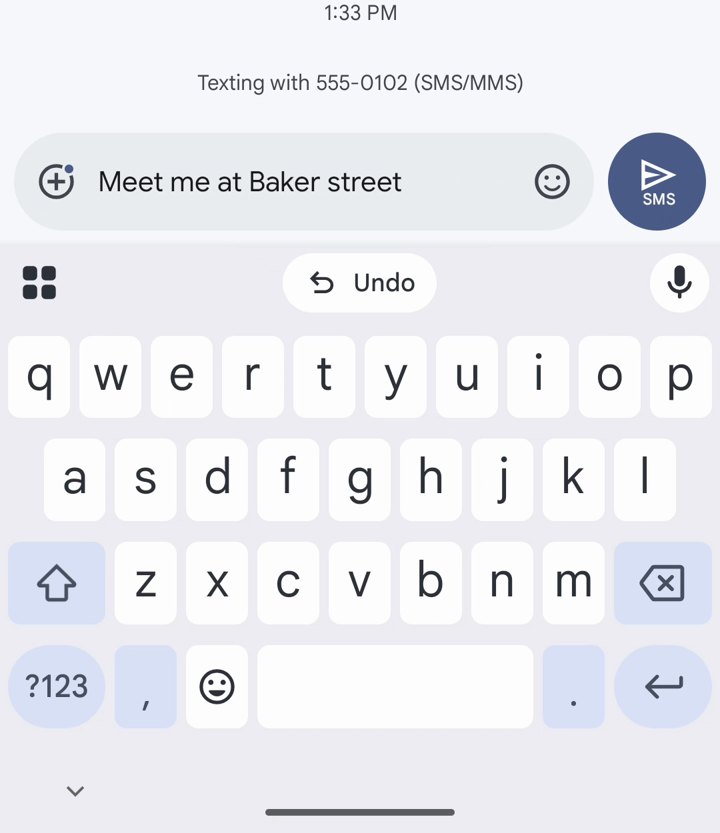
After you copy something, Gboard shows it as a chip above the keys: one tap pastes it, with no long-press and no Paste menu. With Clipboard turned on, Gboard also keeps everything you copy for an hour, so you can paste several things in a row.
- Copy the text (an address, a code, a link).
- In any text box, tap the copied text above the keyboard.
- For older items, tap the clipboard icon and pick one.
More on Android’s hidden clipboard history. Tip: don’t leave passwords on the clipboard; delete them from the clipboard panel after use.
3. Translate while you type
Write in your own language and Gboard puts the translation straight into the message box, so you can chat with anyone.
- Tap the ⊞ menu (or the translate icon) above the keys and choose Translate.
- Pick the language on the right (we chose Spanish).
- Type in English: the translation appears in your message.
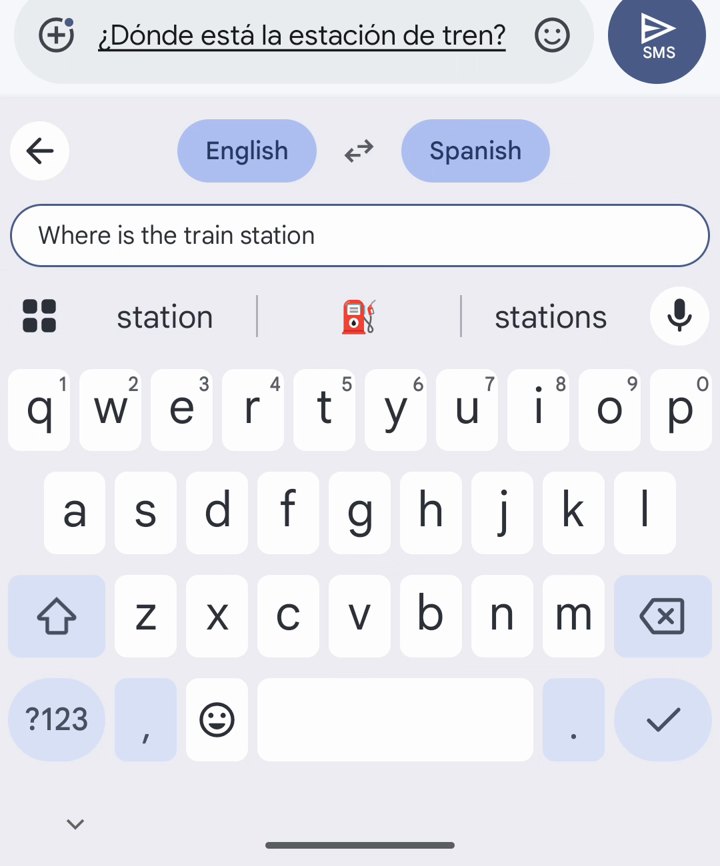
The text you type in the translate box is sent to Google Translate, so don’t use it for private information.
4. One-handed mode for big phones
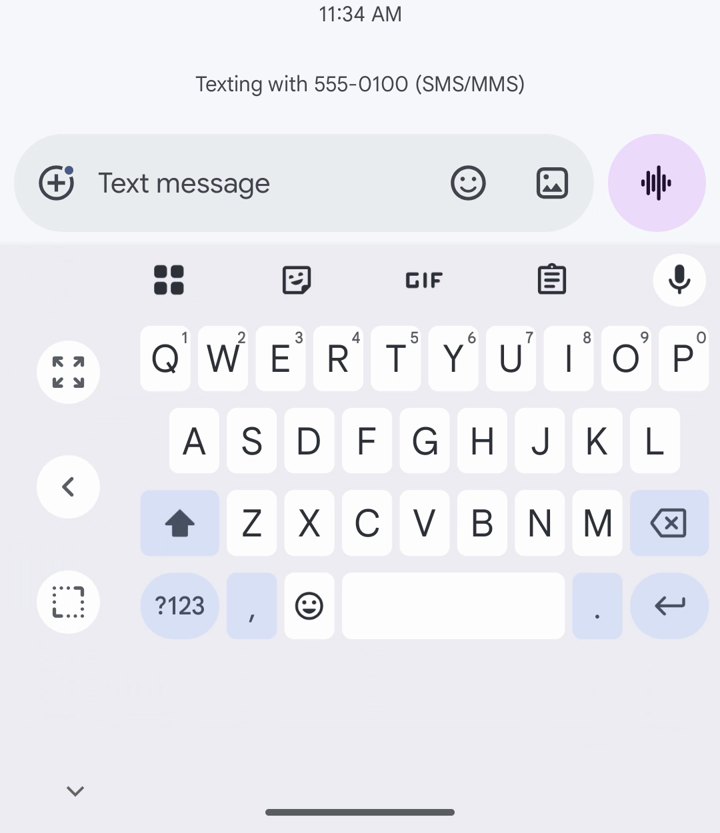
On a big phone your thumb can’t reach the far keys. One-handed mode shrinks the keyboard to one side.
- Tap the ⊞ menu above the keys.
- Tap One-handed. Use the arrow to move it to the other side, or the expand button to go back to full size.
5. Search emojis by word
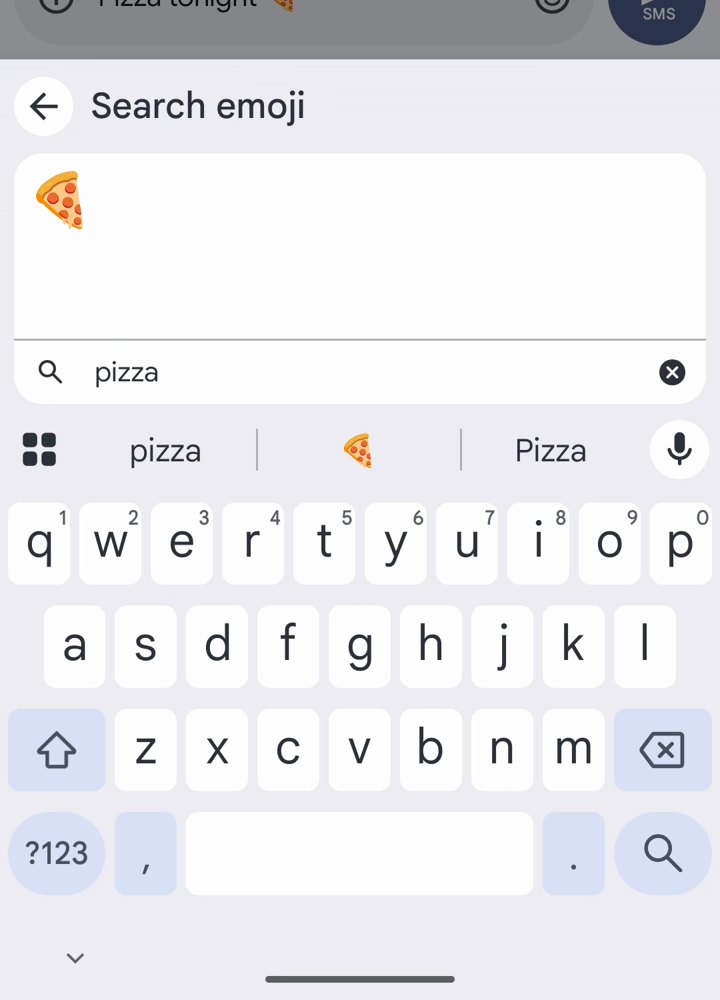
Instead of scrolling through hundreds of emojis, type what you want.
- Tap the 😀 key.
- Tap Search and type a word, for example “pizza”.
- Tap the emoji to add it.
Which keyboard is best for Android?
Gboard is free, has no ads and includes all five tricks above. If you want something different, see our list of the best keyboard apps for Android.
Want more quick Android tricks? Follow AppsApk on Instagram and get daily app picks on our Telegram channel.


















Leave a Comment