

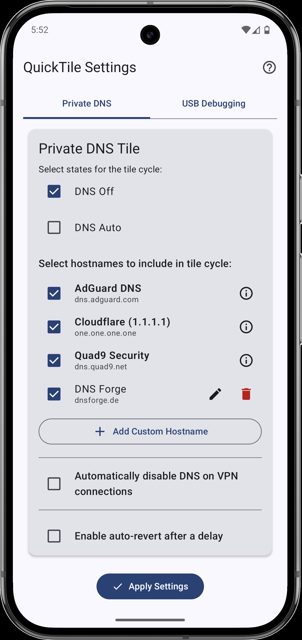
Quick-Tile Settings adds two Quick Settings tiles to your Android phone: one to cycle Private DNS between Off, Auto, and your chosen hostnames, and one to toggle USB Debugging On or Off. People use it to flip these system settings from the notification shade instead of digging through the Settings app, with an optional auto-revert so a change does not stay on forever.
Developer: RBN-Apps · License: GPL-3.0 (open source) · Price: Free
Before you start: the app cannot work until you grant it the WRITE_SECURE_SETTINGS permission, since this is a protected Android permission that cannot be given through the normal app permission prompt. Use one of three methods, all explained with copy-paste commands in the app's own help dialog (tap the "?" icon in the toolbar): (1) ADB from a computer, with the device in Developer Options with USB Debugging enabled, running "adb shell pm grant com.rbn.qtsettings android.permission.WRITE_SECURE_SETTINGS" or installing with "adb install -g -r"; (2) Shizuku, if you already have it installed and running; or (3) Root, if your device is rooted with Magisk or similar. After granting, restart the app or reopen the Quick Settings panel so the tiles become active.
Official file from the developer's release · Sep 21, 2026 · SHA-256 3a9c06c1876e2546…
Screenshots
Key features
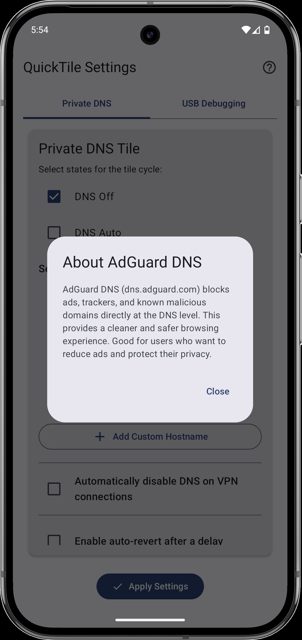
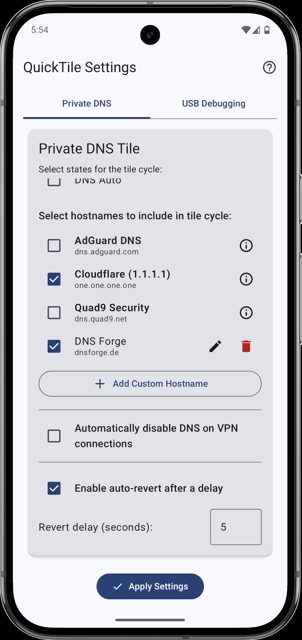
- Private DNS tile that cycles through Off, Auto, and a configurable list of hostnames (Cloudflare, AdGuard DNS, Quad9, or your own custom entries)
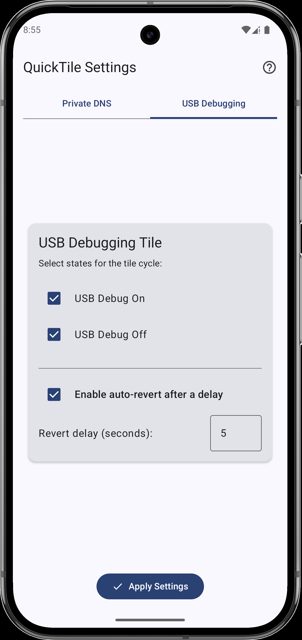
- USB Debugging tile that cycles On/Off, with the option to limit it to specific states
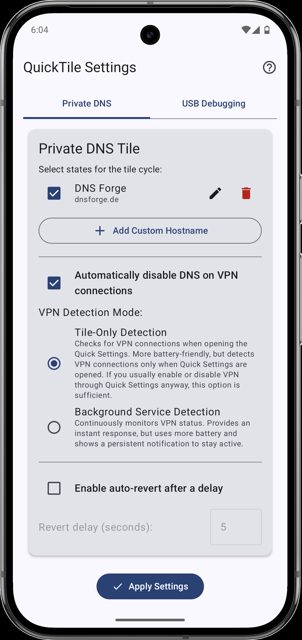
- Optional auto-revert that restores the previous state after a delay you set, shown with a countdown toast
- Smart DNS automation: auto-disable Private DNS when a VPN is active, or auto-switch based on WiFi vs mobile data
- App shortcuts for key actions so launchers and automation tools like Tasker or Samsung Routines can trigger them
- Modern Jetpack Compose UI with Material You dynamic color on Android 12+, available in English, German, Czech, Turkish, Russian, and Brazilian Portuguese
Why isn’t Quick-Tile Settings on Google Play?
The developer distributes it on GitHub Releases, F-Droid, and IzzyOnDroid instead of the Play Store.
Is Quick-Tile Settings safe?
The app is open source under the GPL-3.0 license and this page links to the developer's own GitHub releases, matching what is also published on F-Droid. It needs the protected WRITE_SECURE_SETTINGS permission, which you grant yourself via ADB, Shizuku, or root using instructions built into the app, and on Android 13+ background monitoring may ask for a notification permission for its persistent service notice. Quick-Tile Settings comes straight from its developer rather than through Google Play, so it hasn’t gone through Google’s app review. As with any app, check the permissions it asks for and install it if you’re comfortable with them.
How to install
- Tap the download button above: the APK file downloads straight to your phone.
- When Android asks, allow your browser to install unknown apps.
- Open the file and tap Install.
FAQ
Is Quick-Tile Settings free
Yes. It is open source under the GPL-3.0 license and is distributed on GitHub Releases, F-Droid, and IzzyOnDroid.
How do I add the tiles to my Quick Settings panel
Pull down the notification shade fully, tap the edit (pencil) icon or 'Edit tiles', find the Private DNS and USB Debugging tiles from this app, and drag them into your active tiles area.
What does auto-revert do
If you turn it on for a tile, tapping the tile starts a countdown shown as a toast message. If you do not tap again, the setting reverts to what it was before. Tapping the tile again before the timer ends cancels that revert and moves to the next state instead.
More free apps you won’t find on Google Play: Open Source Apps · Best Android apps not on the Google Play Store.




Frequently Asked Questions
Is Quick-Tile Settings free
Yes. It is open source under the GPL-3.0 license and is distributed on GitHub Releases, F-Droid, and IzzyOnDroid.
How do I add the tiles to my Quick Settings panel
Pull down the notification shade fully, tap the edit (pencil) icon or 'Edit tiles', find the Private DNS and USB Debugging tiles from this app, and drag them into your active tiles area.
What does auto-revert do
If you turn it on for a tile, tapping the tile starts a countdown shown as a toast message. If you do not tap again, the setting reverts to what it was before. Tapping the tile again before the timer ends cancels that revert and moves to the next state instead.













Leave a Comment